
The Columns Your Internship Spreadsheet Template Is Missing
Most internship spreadsheet templates are really just a list: company, role, link, deadline. That's a fine start, but it's the reason so many spreadsheets go quiet by week three. A row tells you a posting exists. It doesn't tell you where you stand, what you've sent, or what to do next. Here are the columns worth adding — and how to keep the whole thing from becoming another job you have to manage.
Start with the basics, then go further
The standard columns are worth keeping:
- Company
- Role title
- Location / remote
- Posting link
- Application deadline
- Date applied
Those cover the what. The columns below cover the how — and that's where an internship search is usually won or lost.
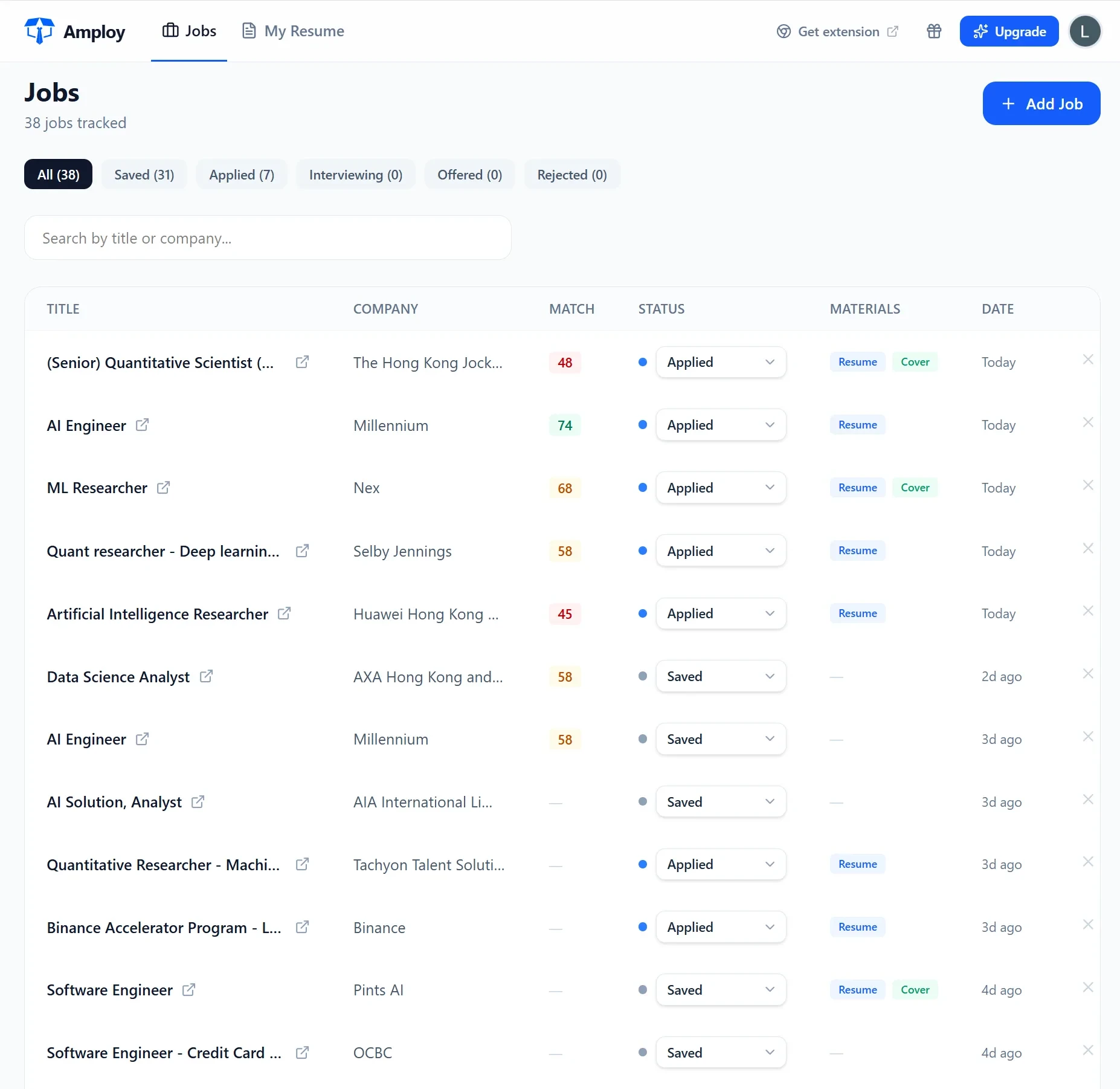
Column: Application status
A single free-text "applied?" cell turns into a mess fast. Use a fixed set of stages instead, so you can sort and filter:
Saved → Applied → Interview → Offer
Being able to see every "Saved" row that's gone stale is the single most useful view in the sheet. If a row has sat in Saved for a week, you know exactly where to spend the next hour.
Column: Which resume and cover letter you sent
For internships, the tailoring is the point. A generic resume and a role-specific one are not the same document, and hiring managers can tell. But once you're applying to fifteen roles in a week, "which version did I send to this company?" becomes a genuine question.
Add two columns:
- Resume version (e.g. "Marketing – campaigns focus")
- Cover letter (yes/no, or a short label)
Then keep the actual files where you can find them. This sounds trivial until a recruiter replies three weeks later and you can't remember what you told them.

Column: Fit notes
Before you apply, jot one line on why this role, beyond the posting title. Not for the recruiter — for you. When you're preparing for an interview, those notes are the difference between reconstructing your reasoning from scratch and just rereading it.
Keep it short: "Small team, does real campaign work, no coffee-fetching language in the JD." That's enough.
Column: Login details per career site
Here's the column almost nobody includes: where the application portal lives and what it's called. Big companies route applications through systems with their own logins — and if you apply to five roles at the same employer, it's easy to end up with several half-remembered passwords.
Add a simple column for the portal name so you know where to go back. Then let a password tool handle the credentials themselves rather than typing them into a spreadsheet.

Column: Follow-up date
If a posting doesn't say when you'll hear back, set your own date — roughly a week or two after applying — and put it in a column. A row with a follow-up date is a row you'll actually act on. Without one, "Applied" is just a receipt.
The problem with a perfect spreadsheet
Every column above makes your tracker more useful and, unfortunately, more work. Copying company names, pasting links, rewriting your resume for the tenth time, drafting yet another cover letter, hunting for the password to a portal you used once — none of that is the part of an internship search that gets you hired. It's the part that makes you quit.
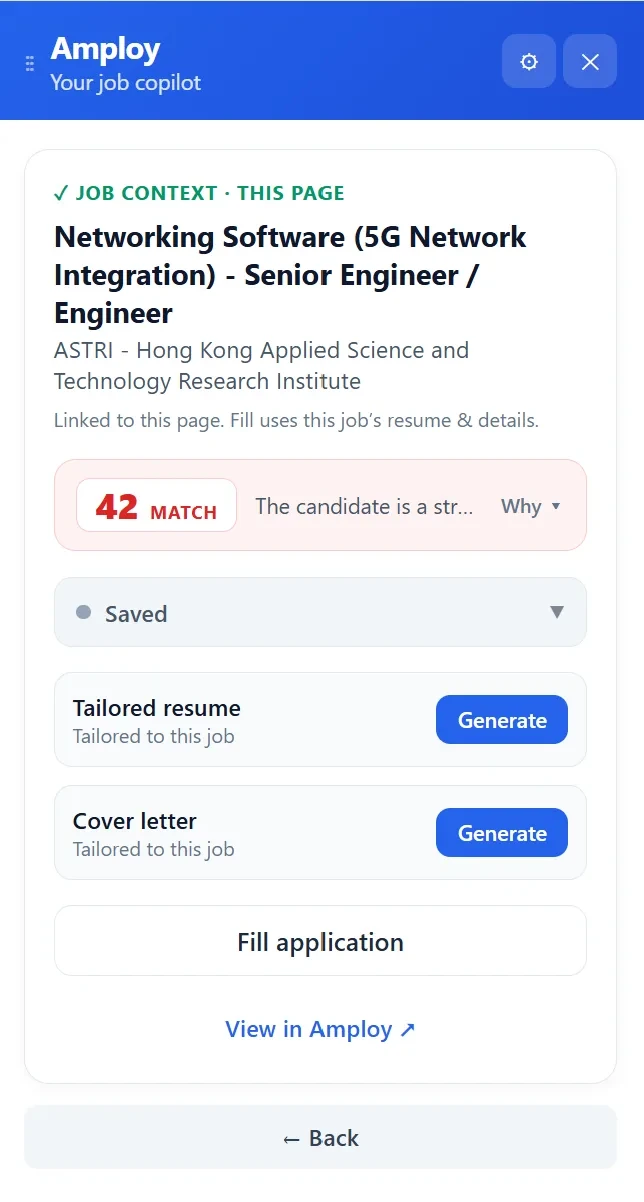
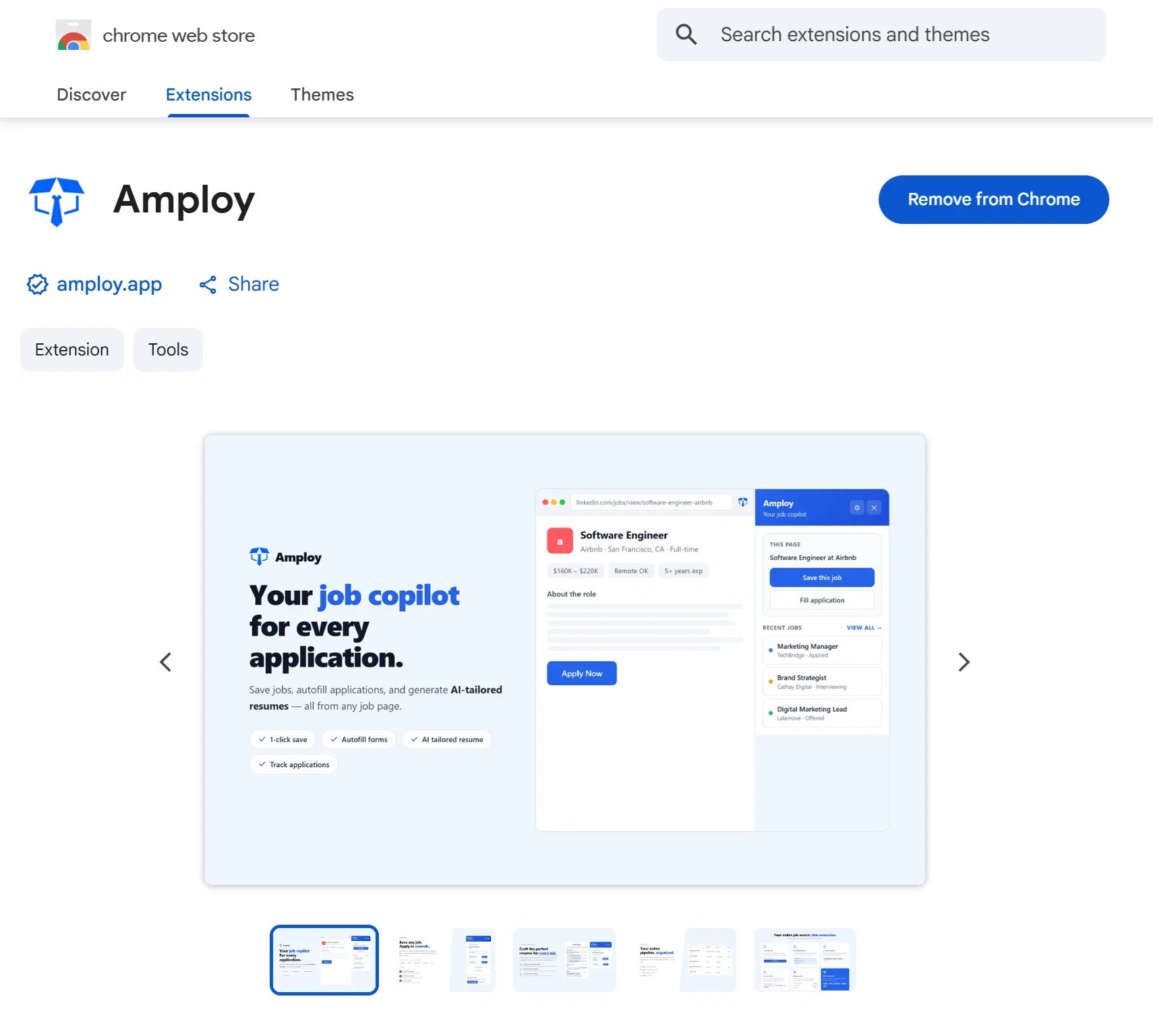
That's the gap Amploy is built for. It's a Chrome extension and website that handles the repetitive layer around your spreadsheet:
- Autofill — one click fills name, phone, work history and application questions from your profile.
- Cover letter — generates a first draft that references the role and your actual experience, which you then edit into your own voice.
- Resume rewrite — rewrites your real experience to match each job description, so the version you send is the version that fits.
- Job tracker — a status pipeline (Saved → Applied → Interview → Offer) sitting right next to each tailored resume and letter.
- Password saver — one saved login per career site, not per job.
Bringing it together
You don't have to choose between a spreadsheet and a tool. The useful pattern is: let the tool do the filling and tailoring, and keep the tracker as your single place to look at the whole search. Each row becomes a real record — status, which documents went out, why the role interested you, when to follow up — without you retyping half of it after every application.
The pitch behind Amploy is blunt: hiring is broken, and volume wins. Most postings get far more applicants than they can seriously consider, and rejections are rarely personal — the people who land interviews are usually the ones applying more, faster. A tracker with the right columns helps you do that without losing the thread. Autofill and tailoring help you do it without burning out.
Start with your next ten saved rows. Update the statuses, note which resume each one needs, and set follow-up dates. The spreadsheet gets more useful the moment it stops being a list and starts being a pipeline.