
Stop Retyping Your Work History: A Practical Autofill Guide
Applying for jobs used to mean one application at a time. Now it means one form at a time — repeatedly typing the same company names, the same dates, the same bullet points into a slightly different layout, on a slightly different career site, for the fortieth time this month.
If you've ever caught yourself retyping your work history from your resume into a text box that already has your resume attached, you already understand why the process feels so draining. This guide is about fixing that specific problem: how to autofill work history on job applications so that the repetitive typing stops and the actual decision-making — which roles to apply to — gets your attention instead.
Why work history is the worst part of the form
Work history fields are uniquely painful because they're both long and inconsistent. One application asks for employer, title, start date, end date, and responsibilities in one block. Another splits the same information into separate sections, with a different date format and a character limit. A third asks you to paste the same details again into an "additional experience" field because its parser didn't read your resume correctly.
None of this is hard. It's just repetitive, and repetition at volume produces a very specific kind of exhaustion. The result is predictable: people apply to fewer jobs than they intend to, stop midway through applications, or skip roles that are a good fit simply because the form looks long.
When hundreds of candidates apply to the same role, the people who get interviews usually aren't more qualified — they simply apply to more roles, faster. Autofilling your work history is one of the highest-leverage things you can do to stay in that game without burning out.
What "autofill work history" actually means
There are two layers to it, and it helps to keep them separate.
Browser-level autofill fills basic fields — name, email, phone, address — from data your browser has saved. It's useful, but it stops exactly where job applications get difficult: employers, job titles, dates, descriptions, and the essay-style questions most application forms include.
Job-specific autofill pulls from a structured profile of your professional history and maps it onto each form's fields. This is the layer that saves real time, because it handles the parts browser autofill never touches.
The most reliable approach combines both: a complete, structured profile as the source of truth, plus a tool that knows how to place that information into whichever application form you're looking at.
Step 1: Build your work history once, properly
Autofill is only as good as the data behind it. Before you speed anything up, spend one session getting your history right.
- Every role, in order. Employer, title, location, start date, end date. Include contracts, part-time roles, and anything relevant to the jobs you're targeting.
- Consistent date formatting. Pick one format and stick to it. You can adjust to a form's format later; consistency in your source data prevents errors.
- Bullet points written as achievements. Each role should have a handful of concrete, specific statements — what you did, what you changed, what the outcome was. These are the raw material for both forms and tailored resumes.
- A short professional summary. Two or three sentences describing what you do and the kind of role you're after.
This is the same information you'd put on a resume, but stored as fields rather than a document. Once it exists in that structure, it becomes reusable across every application, and it becomes the foundation for tailoring later.

Step 2: Let the tool fill the form
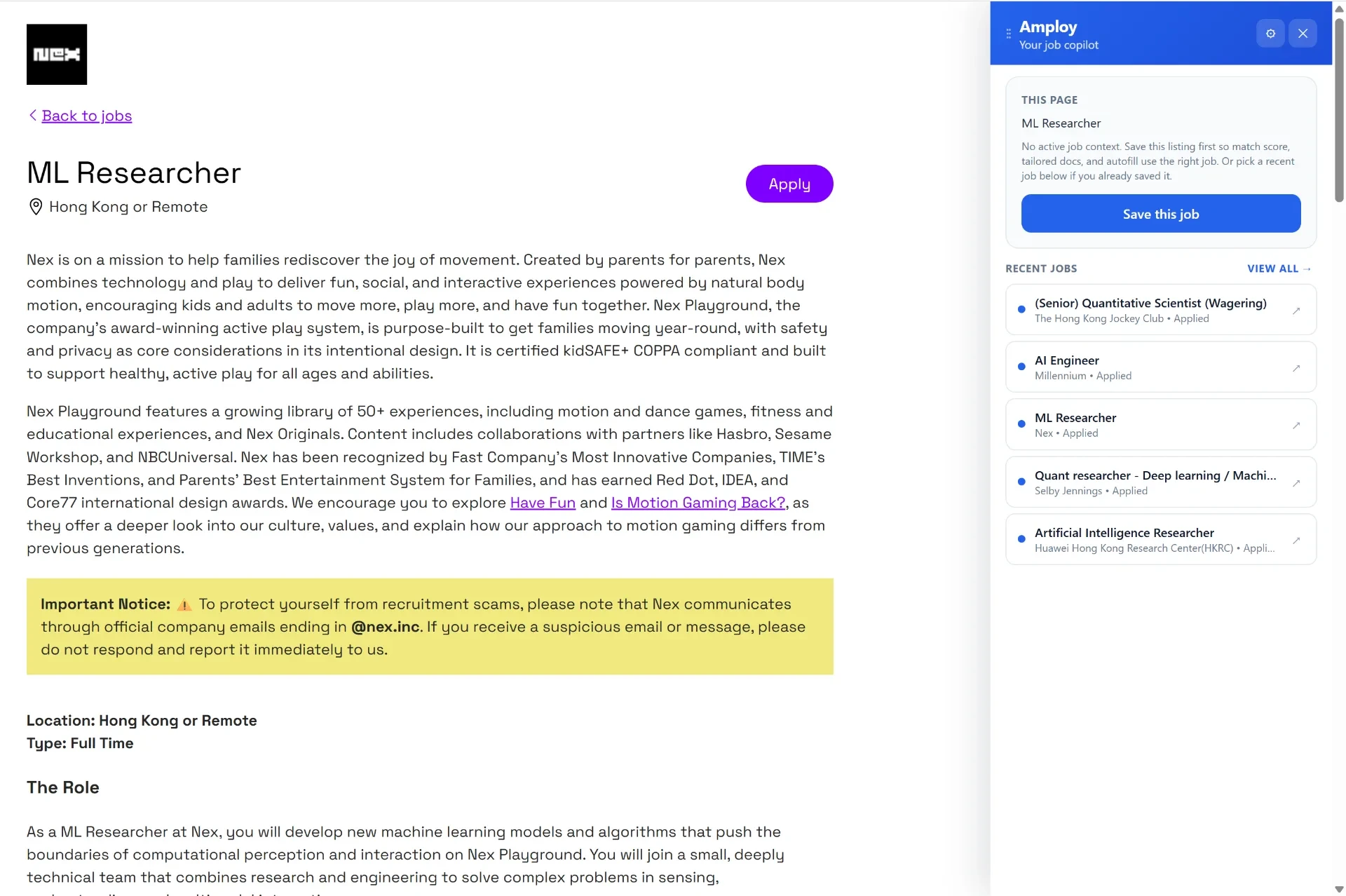
With your profile built, autofill becomes a single action rather than twenty minutes of typing. In Amploy, the extension recognizes the application form you're on and populates it from your profile — name, phone, work history, and the longer essay fields included.
If you're applying somewhere new, this is where the difference between browser autofill and job-specific autofill becomes obvious. Basic fields resolve instantly; the work history blocks, which are usually where people give up, get filled in the same pass.
Step 3: Review before you submit
Autofill is a draft, not a submission. Always do a quick pass before hitting send.
- Check dates and titles against your source profile. Any mismatch is worth fixing before a recruiter sees it.
- Read the essay answers. Autofill gives you a starting point; a sentence or two in your own voice, referencing the specific role, goes a long way.
- Confirm the resume attached is the right version for this job, not the one you uploaded last week for a different role.
This review step is quick — a minute or two — and it's the difference between an application that reads as careless and one that reads as considered.
Step 4: Keep the tailored versions attached to the right job
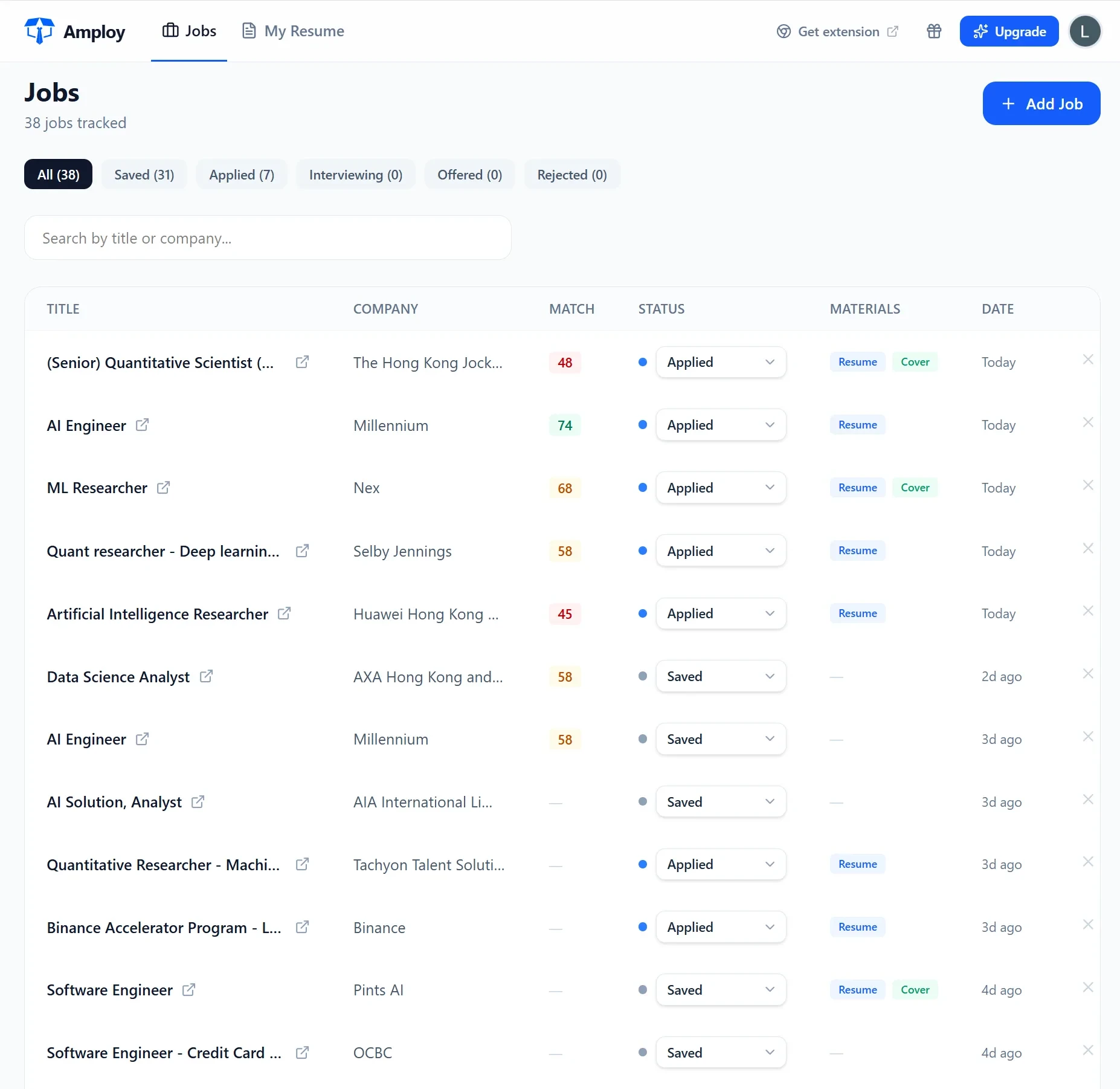
Once you're applying to more roles, the real risk shifts from typing to tracking. Which resume went to which company? Which cover letter referenced which role? Where are you in each process?
Keeping your materials attached to the job — status, resume version, cover letter — turns a scattered inbox and a folder of files into a single view. It also means that when an interview comes up, you can see exactly what you sent, which is far more useful than trying to remember.
Common autofill mistakes (and how to avoid them)
- Stale profile data. Update your profile when you change roles. Autofill will happily repeat information that's out of date.
- Skipping the summary fields. These are often the fields that carry the most weight in an application. Autofill handles the mechanics; the language still needs your input.
- Applying to everything. Volume matters, but volume without fit is just noise. Use match signals and your own judgment to pick where the extra applications go.
- Forgetting the login. Every career site wants an account. A password that's been saved once is a minute you don't spend resetting it mid-application.

Building a repeatable application routine
The people who apply well at volume tend to follow a simple loop:
- Find a role that's worth your time.
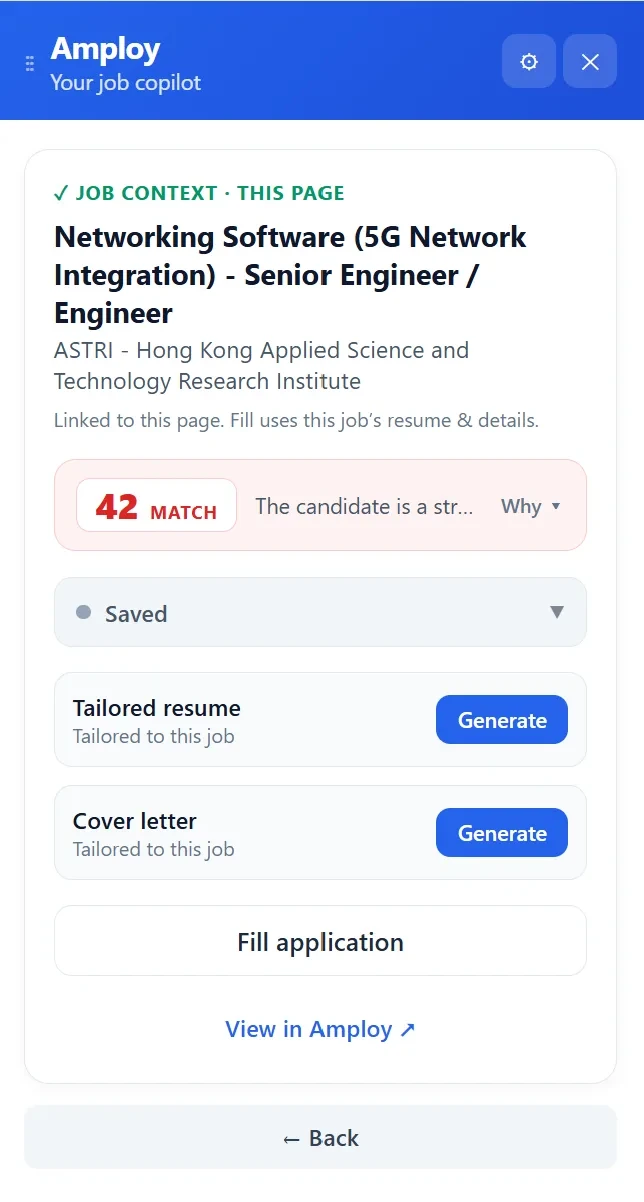
- Tailor the materials — a resume rewrite that matches the job description, and a cover letter draft that references the role and your real experience.
- Autofill the form from your profile.
- Review and submit.
- Log the application with its status so nothing falls through.
Each step takes minutes rather than hours once the profile exists and the tooling is in place. That's the whole point: the process stops being an obstacle and becomes a routine.
The bottom line
Retyping your work history doesn't make you a better candidate — it just makes you a slower one. Build the profile once, autofill the forms from it, review what's been filled, and keep your tailored materials attached to the job they were written for.
Amploy exists to remove exactly this kind of busywork: autofill for the forms, resume rewriting and cover letter drafts for the tailoring, a tracker for the pipeline, and a password saver so the career sites stop getting in your way. Set up your profile today, and the next application you open will be the last one where you type your employment history by hand.