Password Resets Are Killing Your Apply Time: How to Fix It
You've already spent twenty minutes on the job description. You've tailored the resume, drafted the cover letter, and picked the role you want. Then the application form asks you to create an account — and you're staring at a password field, trying to remember whether you used the old email or the new one, and whether the password had a capital letter at the end.
By the time you've clicked "Forgot password" and waited for the reset email, the momentum is gone. Multiply that by every job board, every company career portal, and every ATS with its own login wall, and password resets quietly become one of the biggest time sinks in your job search.
Here's how to stop them from eating your apply time — and how to set up your applications so the login step takes seconds, not minutes.
Why job site logins are a hidden tax on your search
Job hunting is already a volume game. Most roles attract hundreds of applicants, and the people who land interviews are usually the ones who apply to more roles, faster. Every minute spent recovering a password is a minute not spent on the next application.
The problem is that job sites aren't built around you. Each one — company career pages, ATS platforms, job boards — has its own account system, with its own password rules. Some require a symbol, some don't allow them. Some expire your session every few days. So you end up with dozens of logins you use once or twice and then forget.
The reset itself isn't the worst part. It's the break in flow: leaving the form, opening your inbox, waiting for the email, clicking the link, setting a new password, then returning to the application and filling everything out again because the page timed out.
The real cost: it's not the reset, it's the friction
A password reset feels small — a couple of minutes. But the cost compounds in three ways:
- Broken focus. You were in the middle of tailoring an application. The reset pulls you out of that context, and it takes time to get back in.
- Lost applications. How many roles have you abandoned at the login screen? The application was 90% done, and then the "create account" wall appeared.
- Decision fatigue. Every small obstacle is a chance to close the tab. The easier the process, the more roles you actually finish.
The fix isn't to become a password memory champion. It's to remove the login step from your mental load entirely, so the only thing you're thinking about is whether the role is a good fit.
What "saving job site logins" actually means in practice
Saving logins for job sites is different from saving your bank password. You're not logging into the same site every day — you're logging into a rotating set of career portals, each used for a handful of applications before you move on.
That means the usual password-manager advice doesn't quite fit:
- You don't need a separate complex password for every single portal — you need one saved login per career site, not per job.
- You need the login attached to the site, not buried in a note or a spreadsheet.
- You need it available right when you're on the application form, not in a separate app you have to open.
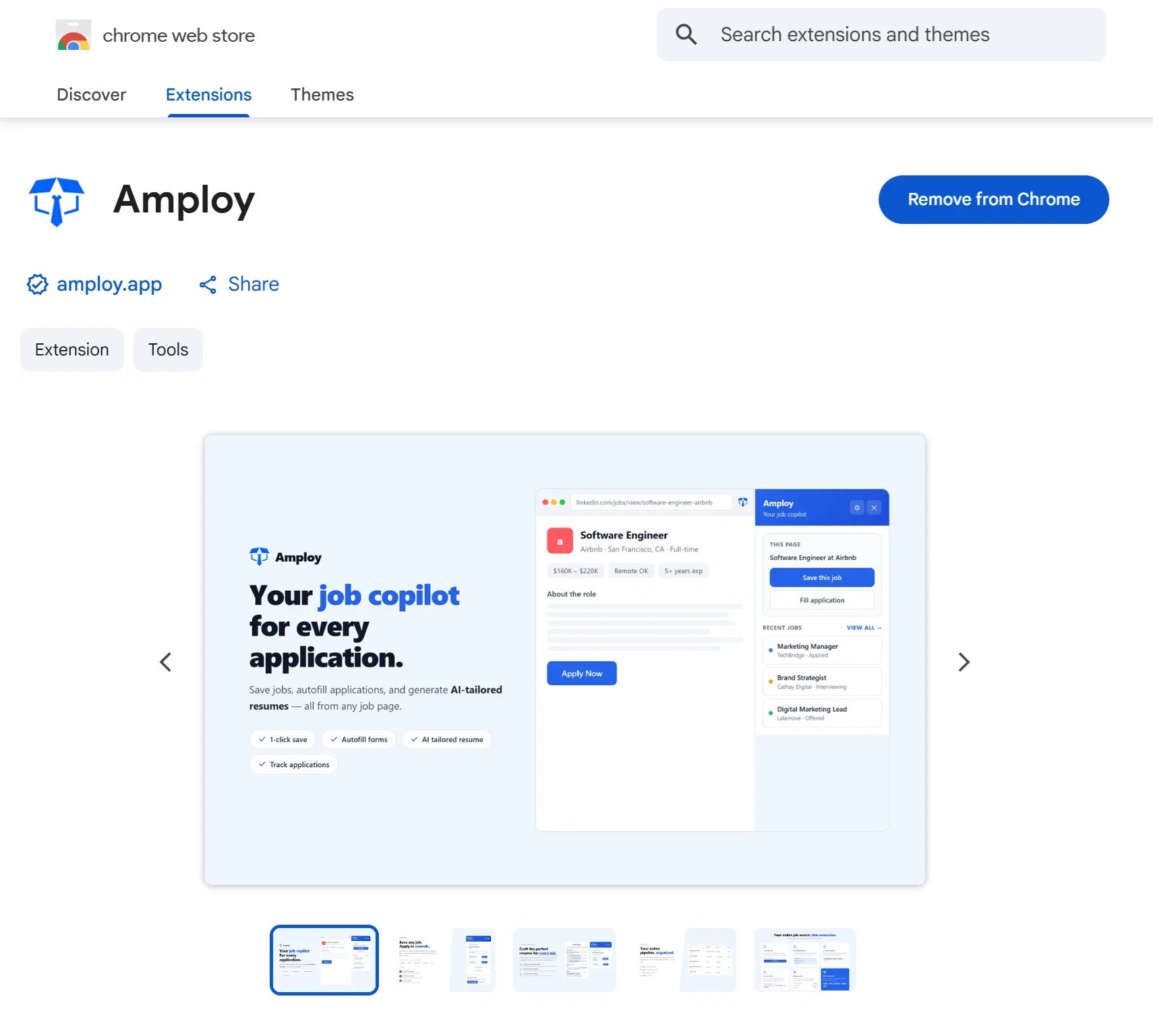
This is the gap Amploy's password saver is built for. It stores site logins so you never forget the passwords — one saved login per career site, not per job. When you hit a login wall mid-application, it's already there.

A simple routine that keeps apply time low
You don't need a complicated system. You need a routine that makes the login step automatic.
1. Save the login the first time you create it
The moment you create an account on a career site, save the login. Don't wait until you need it again — by then you'll have forgotten which email you used.
2. Keep one login per career site
Resist the urge to create a new account every time. One saved login per site means you're not juggling multiple identities, and you always know which credentials apply.
3. Put the login next to the application
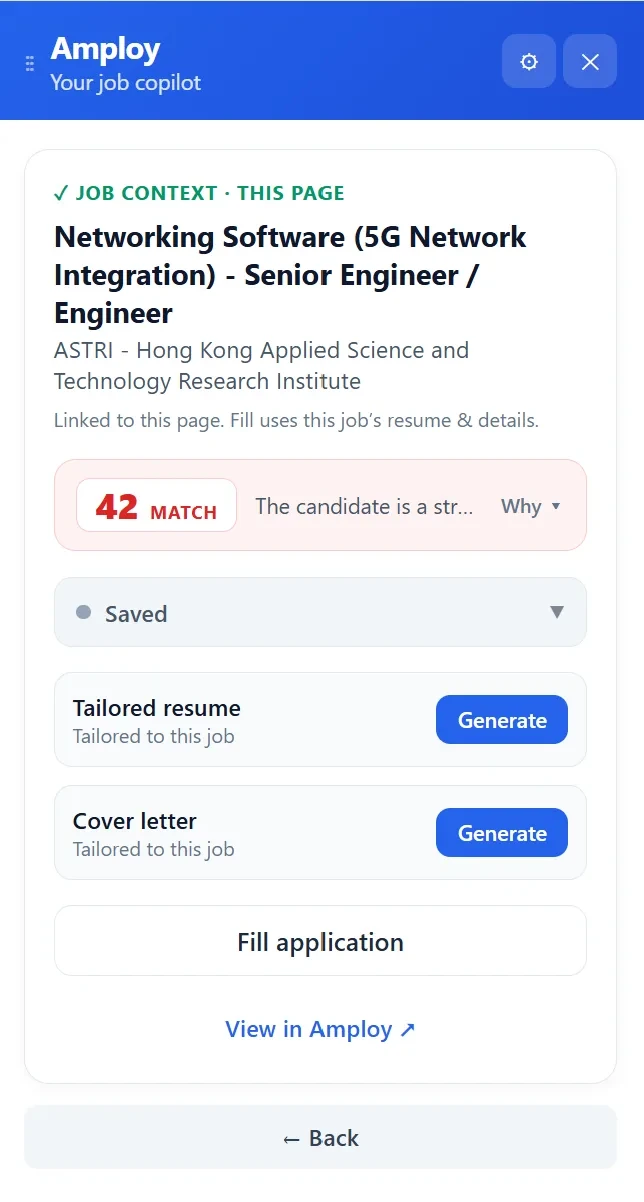
The login only saves time if it's available where you're applying. Keep it alongside the rest of your application workflow — tailored resume, cover letter, and status — rather than in a separate document.
4. Track what you've applied to
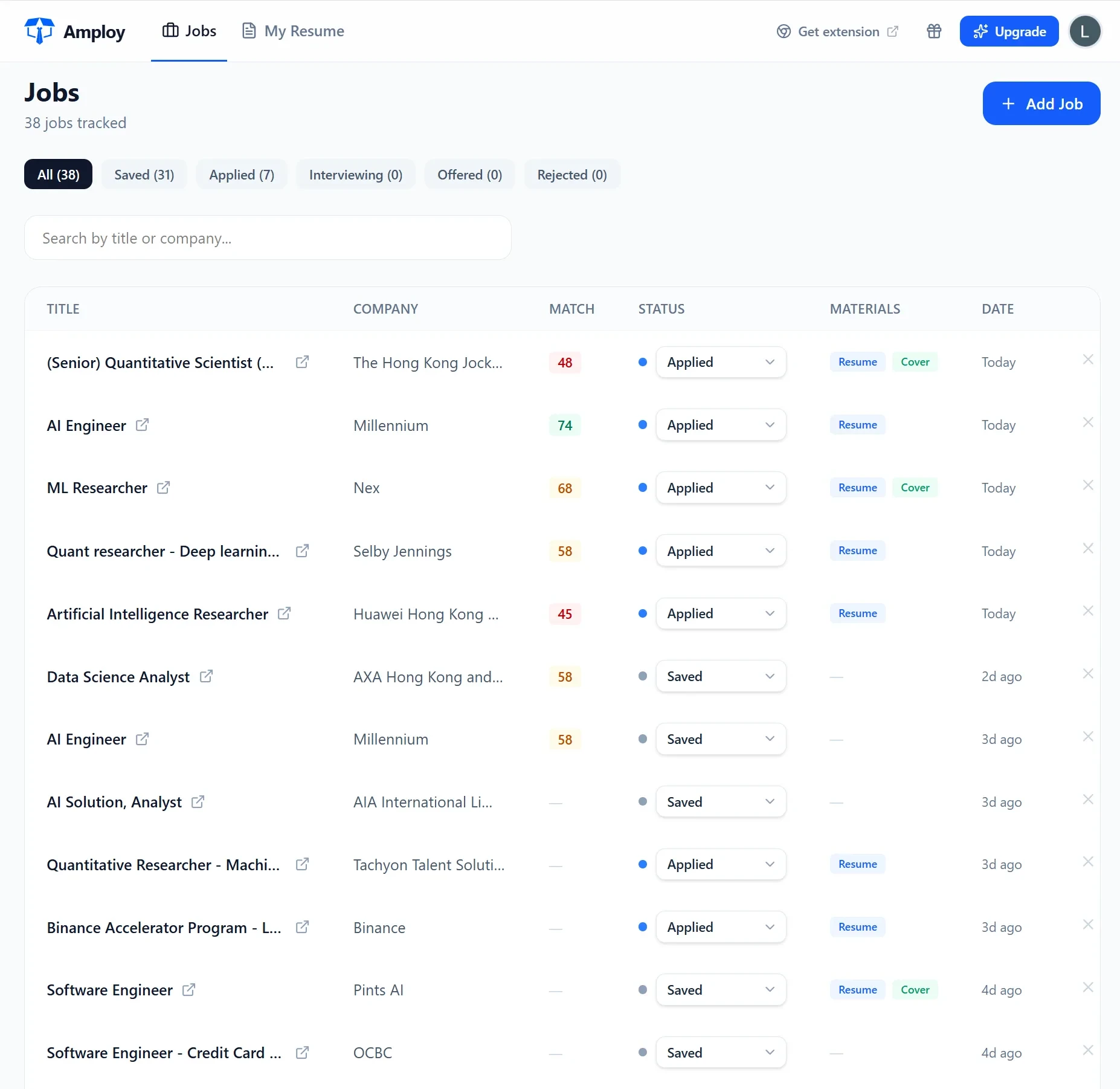
Once logins stop being a barrier, the risk shifts: you apply to more roles and lose track of them. That's why the job tracker matters as much as the password saver. Each tailored resume and cover letter lives next to its status — Saved → Applied → Interview → Offer — so you're not logging back into a portal just to check whether you already applied.
Where this fits into the bigger picture
Password resets are a symptom, not the disease. The real problem is that job applications are full of repetitive busywork: filling in the same name, phone, and work history; rewriting the same resume for every role; and yes, recovering logins.
Amploy's approach is to automate the repetitive parts so you can apply to more roles, faster — without burning out. Autofill handles the form fields. The cover letter and resume rewrite handle the tailoring. The job tracker keeps your pipeline organized. And the password saver handles the login walls that would otherwise stop you mid-application.
The takeaway
Every password reset is a small pause that adds up to a slower search. The fix is simple: save one login per career site, keep it where you apply, and let the tooling handle the rest.
If you're ready to stop losing time at the login screen, install the Amploy extension and set up your saved logins before your next application. The next time a career portal asks you to sign in, you'll be one click away from finishing the application — not fifteen minutes away from starting it again.