
Password Managers and Job Applications: A Sensible Pair
Applying to jobs at volume has a hidden tax: every career site wants an account. Workday, SuccessFactors, iCIMS, Taleo, plus a dozen company-specific portals — each one with its own login, its own password rules, and its own "forgot password" loop. The result is predictable. You either reuse the same weak password everywhere, or you lose ten minutes every application just getting back in.
That's where a password manager stops being a nice-to-have and becomes part of your job-search stack.
Why job applications break your password habits
Job hunting is one of the few activities where you create accounts you'll never use again — or will use exactly twice, three weeks apart, when the recruiter emails you about an interview.
That pattern pushes people toward bad habits:
- One password, everywhere. Convenient, and a single breach away from exposing every account tied to that email.
- Writing logins in a notes app. Which you then can't find when you're on your phone in a waiting room.
- Resetting the password every time. Five minutes of captchas and email verification, multiplied by every portal you touch.
None of these are character flaws. They're the rational response to a task that's repetitive, low-stakes in the moment, and high-volume. Which is exactly the kind of task worth automating.
What to look for in a password manager for job applications
Most password managers are built for general browsing. For job search specifically, a few things matter more than the feature checklist:
One login per site, not per job. You don't need a unique credential for every application at the same company. You need one saved login for each career portal, so the fiftieth time you land on a SuccessFactors page you're already in.
Quick access while you're actually applying. If saving a password means opening a separate app, switching windows, and pasting, you'll stop doing it. It has to live where the application form lives.
Somewhere to keep track of what you've applied to. A login is only useful if you remember why you have it. When a recruiter replies weeks later, you want to know which role, which company, and what you sent.
How Amploy handles it
Amploy's job-search tooling includes a built-in password saver alongside autofill, cover letter generation, resume rewriting, and a job tracker. The logic is simple: if we're already removing the repetitive parts of applying, the login screen shouldn't be the exception.

The password saver stores one saved login per career site — not per job — so the same credential works whether you're applying to your first role at a company or your fifth. It sits next to the rest of your application workflow, which means saving a login takes a second rather than a context switch.
That matters most when you're applying at volume. If you're sending out ten or twenty applications in a sitting, the portals add up fast. The fewer interruptions between "I found a role" and "application submitted," the more roles you actually get through.
Pair it with the rest of the workflow
A password manager solves one slice of the problem. The bigger win comes from connecting it to everything else.
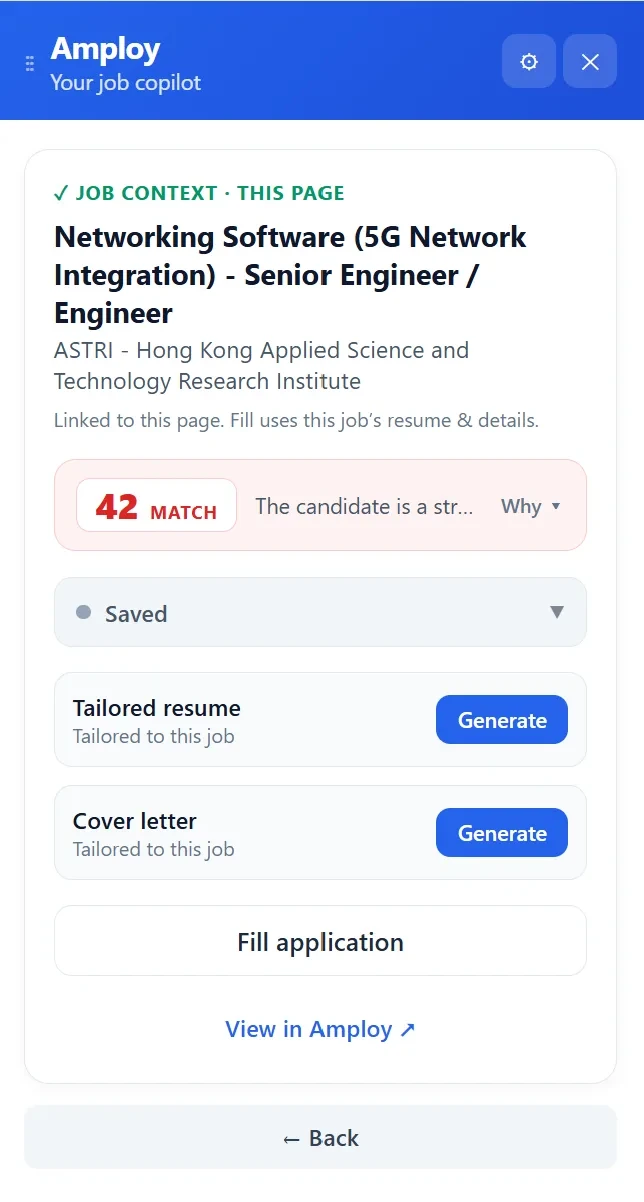
When you're on a job listing, the extension shows the role context and lets you generate a tailored resume, draft a cover letter, or fill the application in one click. Your saved login gets you into the portal; autofill handles the name, phone, and work history fields; the cover letter and resume rewrite match your real experience to the job description.
Then the job tracker keeps the whole thing legible.
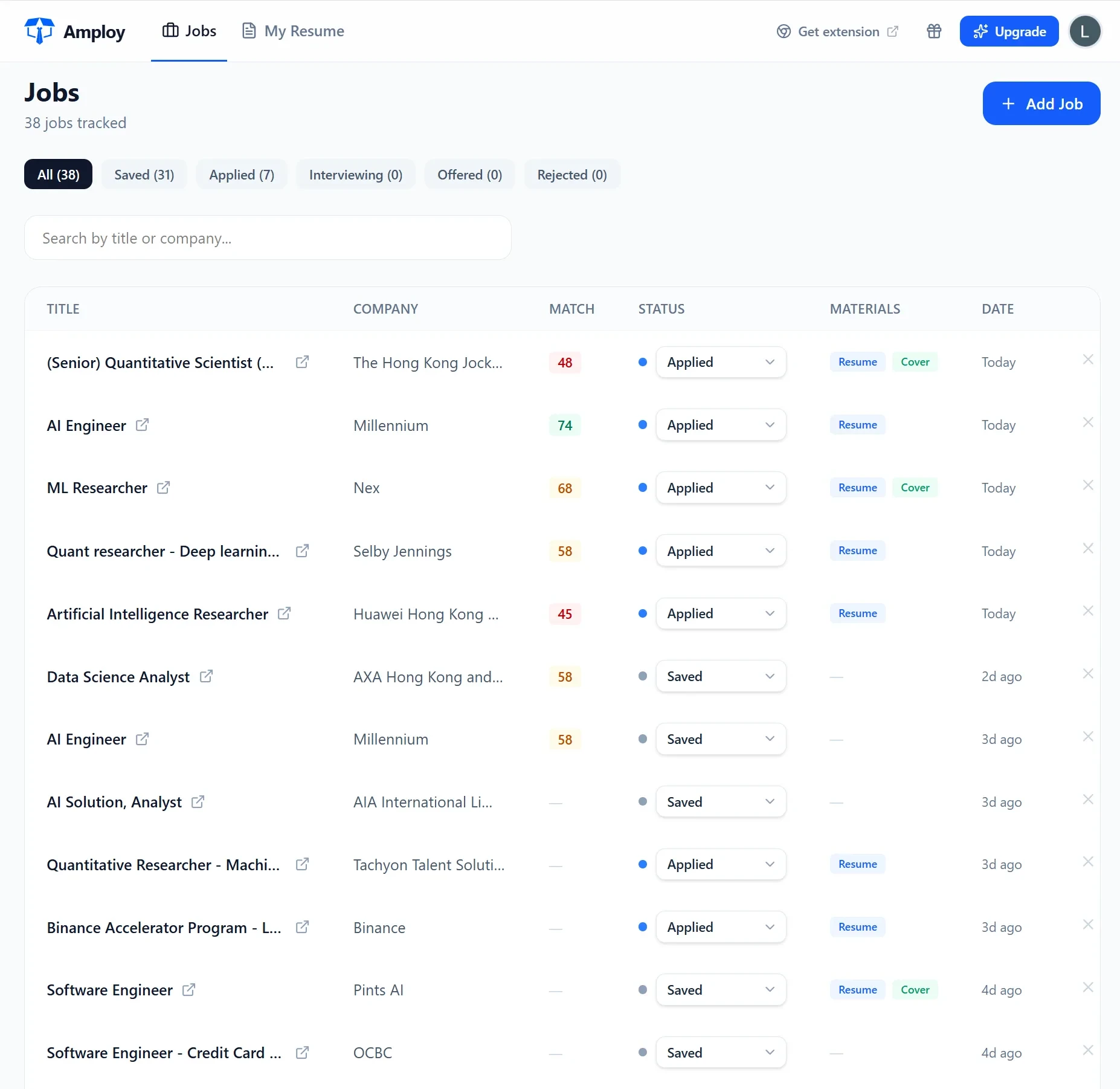
Every role sits in a pipeline — Saved, Applied, Interviewing, Offered, Rejected — with your tailored materials attached. So when you get that email three weeks later and need to log back in, you know exactly which application it's about and what you submitted. The password is the small piece that makes the rest retrievable.
The practical setup
If you're starting from scratch, here's the order that works:
- Pick one place to store logins and commit to it. Fragmentation is worse than a mediocre manager.
- Save the login the first time you create it. Don't plan to come back and do it later — you won't.
- Keep application materials next to the login. A password gets you in the door; knowing what you sent is what gets you through the interview.
- Stop resetting passwords as a reflex. If you've saved it properly, you shouldn't need to.
The bottom line
A password manager won't get you hired. But it removes one more piece of friction from a process that's already full of it — and in a market where volume genuinely matters, friction is the enemy.
Amploy is built around that idea: automate the repetitive parts of applying so you can get through more roles without the grind. The password saver is one small piece of it, sitting right next to autofill, tailored resumes, cover letters, and a tracker that keeps it all straight.
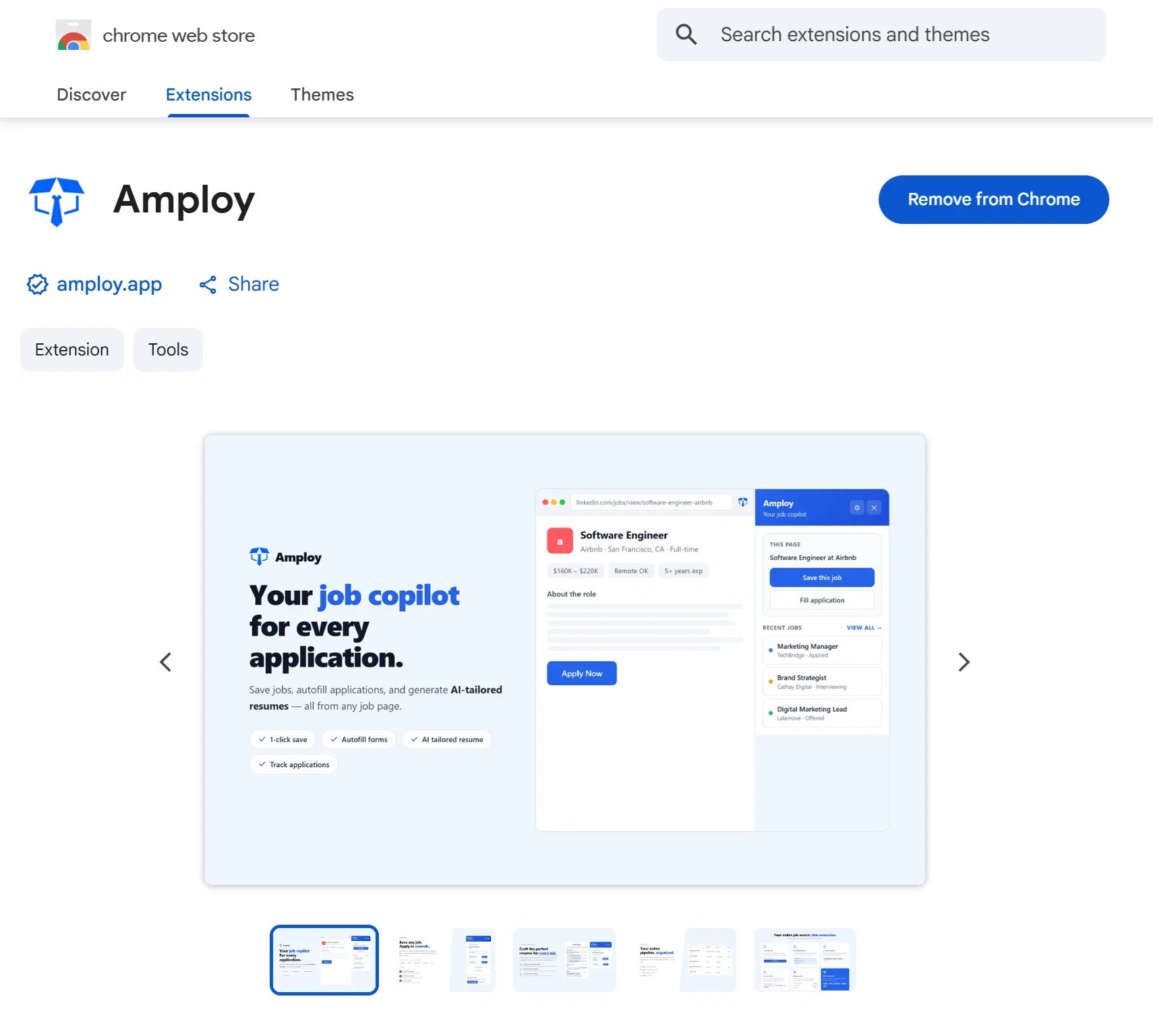
Ready to stop wasting time on the parts of applying that don't need you? Add Amploy to Chrome and let it handle the busywork.