
Password Manager for Job Applications: What to Store and How
If you're applying to jobs at volume, you're managing more than a resume. You're managing dozens of accounts: company career portals, ATS systems like Workday and SuccessFactors, job boards, and the occasional application that makes you register just to upload a PDF.
Each one wants a login. Each one wants a password. And none of them talk to each other.
This is one of the quiet, underestimated costs of a serious job search — and it's exactly where a password manager (and a tool built for job applications) earns its place.
Why job seekers end up with so many logins
A single application can create two or three accounts. You might:
- Register on a company's career site to submit one role
- Create an account on an applicant tracking system that dozens of companies share
- Sign up for a job board to set up alerts
- Log back in weeks later to check status or add a document
Multiply that by 20, 50, or 100 applications, and you have a sprawling, disorganized set of credentials. Most people respond by reusing the same password everywhere — which is convenient until one site gets breached and every account tied to your email is exposed.
What to actually store
The goal isn't to hoard logins. It's to store the right things in the right place so you're never locked out of an active application.
Store these:
- One login per career site, not per job. You don't need a separate entry for every role — you need one entry for the portal. This keeps your vault clean and makes it obvious where to look.
- The email you actually used. If you have a personal and a professional address, note which one you registered with. Mismatched emails are the number one reason people can't recover an account.
- Recovery details and security answers. Store them securely rather than in a notes app.
- A short note on what the site is for, so future-you remembers why
career0.something.comexists.
Skip these:
- Passwords for one-off applications you'll never revisit. Use a generated password and let the manager handle it — no need to memorize anything.
- Anything sensitive in plain text. No passwords in spreadsheets, email drafts, or your phone's notes app.
How to structure it
A little structure goes a long way:
- Use one strong, unique password per site. Generate and save it — you'll never type it manually anyway.
- Group by career site, not by company, unless a company runs its own unique portal.
- Keep your profile info current. Your name, phone, work history, and email should match what you enter on applications, so you're not second-guessing which version you used.
- Review your vault periodically. Prune logins for roles you've closed out; keep the ones you might return to.
If you use a browser-based manager, this becomes near-invisible: autofill handles the entry, and you only intervene when something looks off.
Where Amploy fits
Amploy's job-search productivity tool includes a password saver built around exactly this problem — one saved login per career site, not per job. It lives alongside the rest of your application workflow, so your credentials, your tailored resumes, and your application status all sit in the same place instead of scattered across tabs and sticky notes.

That matters because the rest of Amploy is designed to remove friction, too. Autofill drops your name, phone, work history, and essays into application forms in one click. The cover letter and resume rewrite tools draft materials tailored to each role. And the job tracker keeps a status pipeline — Saved → Applied → Interview → Offer — next to each tailored resume and letter, so you always know where things stand.
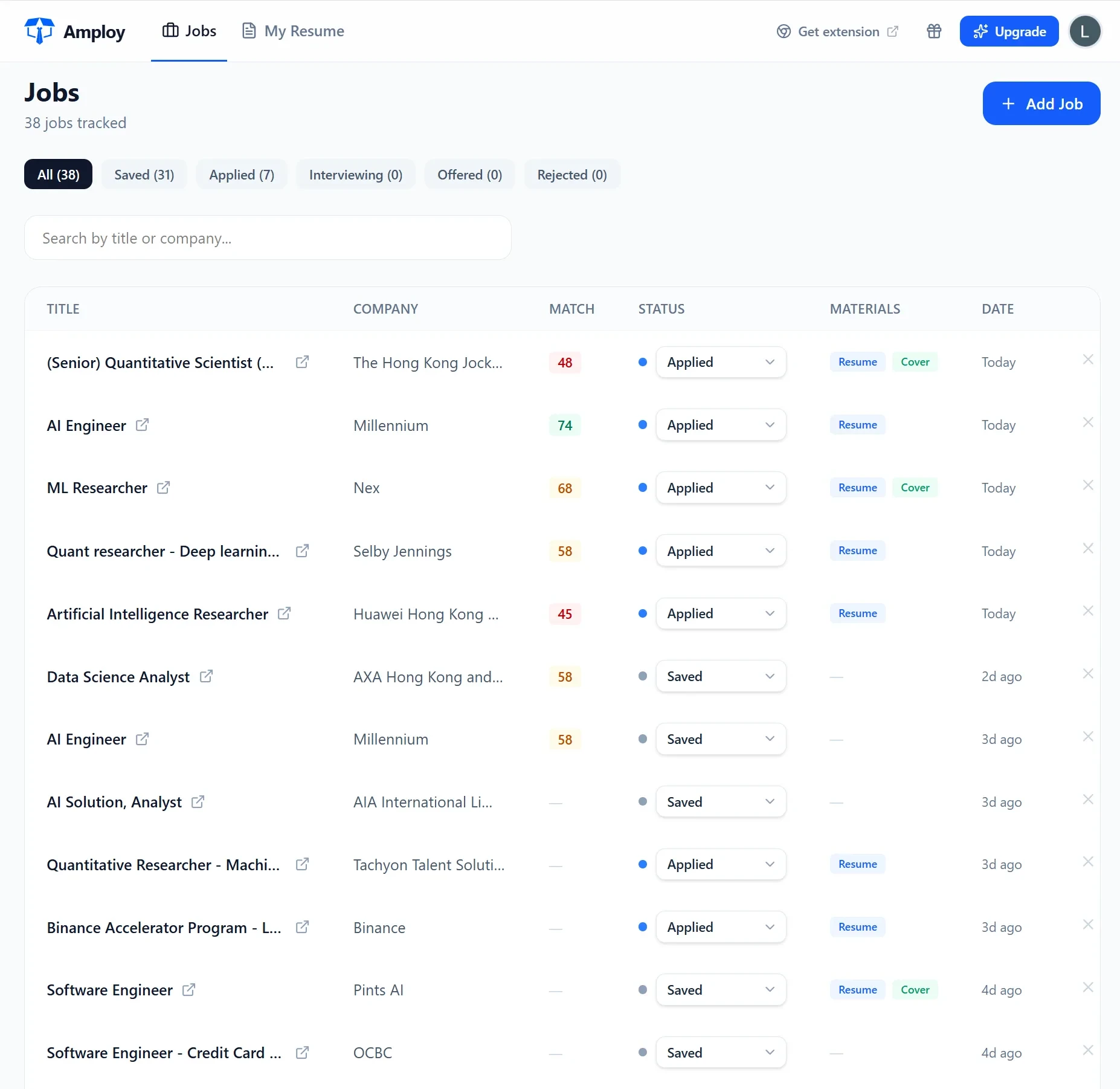
When your logins, materials, and status live together, applying to more roles stops being a memory test. You open the tracker, pick the next role, and go.
A simple routine that keeps you unblocked
- Before you apply: confirm your profile details are current so autofill and password saving work cleanly.
- When you register: let the manager generate and save the password. Don't reuse.
- After you submit: log the application in your tracker so the account has a purpose and a status.
- Every few weeks: skim your vault, remove dead logins, and check that recovery emails are the right ones.
The point
Job searching already asks a lot of you. Remembering 60 passwords shouldn't be part of it. Store one login per career site, keep your details consistent, and let tools handle the repetition — so the only thing you're spending energy on is the application itself.
If you want the password saver, autofill, and tracker working together, add Amploy to Chrome and let it handle the busywork.