Password Manager for Job Applications: Stop Resetting Logins Mid-Application
You're halfway through an application form. Name, phone, work history, a paragraph about why you want the role — all of it filled in. You hit submit and get bounced back to a login screen that asks for a password you set two months ago and never touched again.
So you do the password dance: try the old standby, fail, request a reset link, wait, set a new password, log back in, and then find out the form saved none of your progress. Ten minutes gone. Multiply that by every career portal you've registered with, and a meaningful chunk of your job search disappears into login screens instead of applications.
That's the specific problem a password manager for job applications solves — and it's the reason Amploy builds one directly into its job-search tool rather than treating logins as an afterthought.
Why job seekers hit login walls more than anyone else
Applying to jobs means creating accounts. Not a few — dozens. Corporate career portals, Applicant Tracking Systems (ATS) like Workday and SuccessFactors, agency sites, company-specific application hubs, job boards. Each one wants a username, a password, and often a security question.
Most people handle that by reusing a password or two. That feels efficient until one site has a stricter rule than the last, so you tweak it slightly — and then you can't remember which variation belongs to which portal. Or you save it in a browser and switch devices. Or you trust the "remember me" checkbox and then the session expires right before you were going to check on an application.
The cost isn't just annoyance. Login friction is one of the quiet reasons people abandon applications halfway through, delay applying to roles they're qualified for, or lose track of which portals they've already signed up to. Hiring rewards volume and speed — the people landing interviews are usually the ones applying more, more consistently. Losing ten minutes per login wall eats directly into that.
What a password manager should do in a job search
A general-purpose password manager is better than nothing. But job search has its own quirks, and the right tool should reflect them:
- One login per career site, not per job. You apply to five roles at the same company portal — you shouldn't juggle five credentials or re-register each time.
- Credentials stored next to the work. The password for a portal matters because of the application sitting behind it. Keeping them in the same place keeps both organized.
- Fast fill, no break in flow. Autofill should extend to logins, so you're not stopping to search a vault in the middle of a submission.
- Built for the apply-then-check-back rhythm. You'll return to these portals for status updates, interviews, and follow-ups. The logins need to be findable months later, not just today.
How Amploy handles site logins
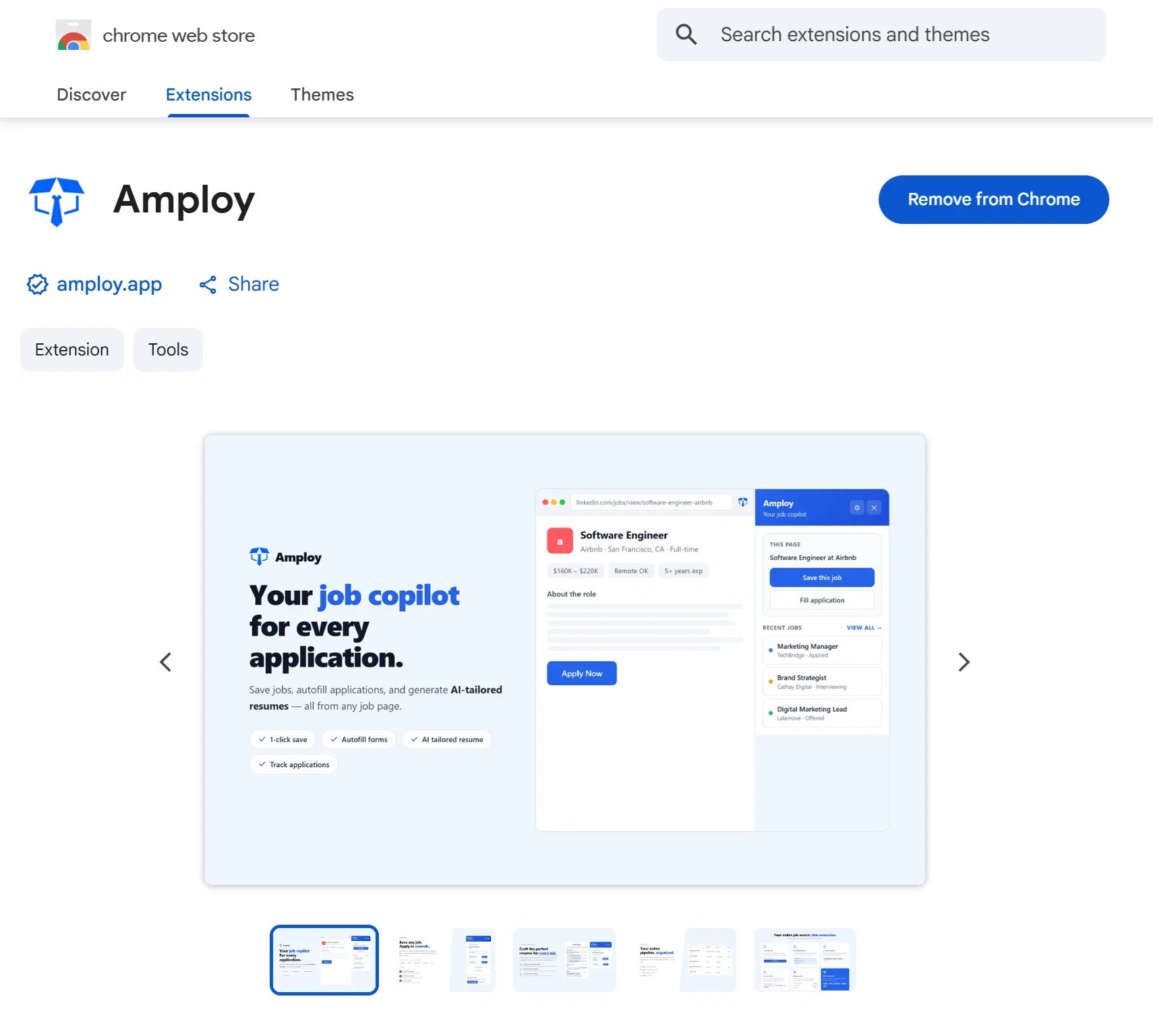
Amploy is a Chrome extension plus web app built around one promise: stop wasting so much time applying to jobs. Site logins are part of that, so the password saver lives directly inside the tool you're already using to apply.
The design principle is simple: one saved login per career site, not per job. You save your credentials for a portal once, and they're there the next time you come back to it — whether you're submitting a new application or logging back in to check on one.

Because it sits alongside the rest of Amploy, the password saver isn't isolated. The same dashboard holds:
- Autofill — one click fills your name, phone, work history, and essays from your profile, so the form itself isn't the bottleneck.
- Cover letter and resume rewrite — drafts that reference the actual role and your real experience, saved with the job they belong to.
- The job tracker — a Saved → Applied → Interview → Offer pipeline that shows every application next to the materials you sent. The two features reinforce each other: your portal logins belong to the sites in your tracker, and your tracker tells you which logins you still need.
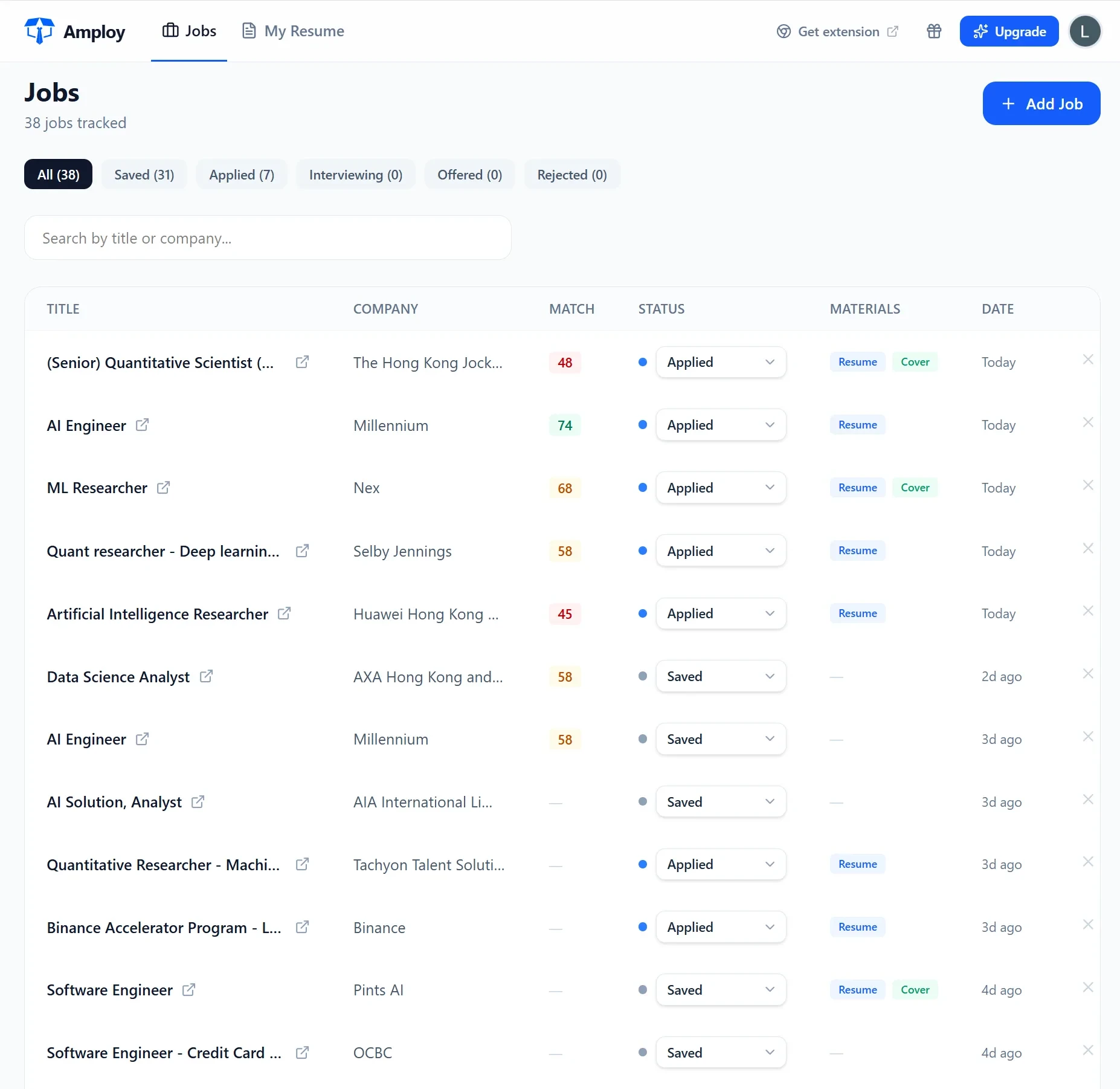
The payoff is that the whole loop stays intact. You log in once, apply with autofill and tailored materials, and track what you sent — without a single password reset fragmenting the process.
Set it up once, then forget about it
You don't need a complicated system. A short setup makes the login problem disappear for the rest of your search:
- Install the Amploy extension and create your profile with the basics — contact details and work history — so autofill has something to work with.
- The next time you land on a career site, save that portal's login as you apply. One entry per site.
- Keep the applications flowing. Use autofill, generate a tailored resume and cover letter when the role warrants it, and let the tracker record the status.
- Come back without friction. Following up, checking status, or applying to a second role at the same company means the login is already there.
Chrome can offer to save passwords, but a generic browser prompt doesn't know anything about your job search. Amploy's saver is scoped to the portals you're actually using to apply, sitting right next to the forms it's meant to unblock.
The takeaway
Hiring is broken and volume wins — but only if you can maintain the volume without burning out on busywork. Password resets mid-application are exactly the kind of busywork that stops people from applying to the next role, and the one after that.
If you've ever abandoned a perfectly good application because the portal locked you out, that's the signal. Save the login once, keep it with the rest of your job search, and spend your time on applications instead of recovery links.