
Manage Job Site Passwords Without the Reset Loop
You know the loop. You find a promising role, hit Apply, and the site wants an account. You don't remember if you've applied to this company before, so you guess a password. It's rejected — too short, needs a number, needs a symbol. You try again. Now the site tells you an account with that email already exists.
So you go to the reset flow. Check email, click the link, set a new password, get bounced back to a blank application form. And the job description you were going to tailor your resume against is now two tabs and ten minutes behind you.
It's a small friction. It happens dozens of times across a job search, and it's exactly the kind of friction that makes people apply to fewer roles than they should.
Job sites make the password problem worse
Most password advice assumes a handful of logins you use every week. A job search is the opposite: you create accounts on dozens of career portals — company career pages, big applicant tracking systems (SuccessFactors, Workday, Taleo and friends), regional job boards — and then you may never log in again.
That creates a few specific problems:
- Reused passwords. When you're signing up on the fly, it's tempting to reach for the same password you use everywhere. That's a security risk, and it's a habit worth breaking precisely because these are accounts you don't think about.
- Different rules per site. One portal wants eight characters, another wants a symbol, another rejects symbols. Your "standard" password fails and you start improvising.
- Lost track of where you applied. Did you already create an account on this portal or not? If you can't remember, you either reset (time) or sign up again (often blocked).
- Resets at the worst moment. Password resets always seem to land mid-application, when you were focused on tailoring your resume for a specific role, not on account admin.
None of this gets you an interview. It just costs you momentum.
What a password manager for job applications actually needs
The category answer is "use a password manager." That's correct but incomplete for job seekers, because the workflow is unusual: high signup volume, low repeat visits, and an account tied to a career site rather than to a single job.
What you want in practice:
- One record per career site, not per job. You'll apply to five roles at the same company through the same portal. You need the login once, not five times.
- Strong generated passwords you never have to remember. If the tool stores and fills them, you can let the site accept the longest, messiest password it allows.
- Autofill that also handles the rest of the form. The password is one field. Name, phone, work history, and essay questions are the other ten.
- A record of where you've applied, so you're not resetting a password for an account you didn't need to log into.
Keep one login per career site
This sounds like a small thing, but it's the difference between a tidy system and a mess. Career portals are often shared across many employers or reused across every posting at one company. Treat the portal as the unit.

A saved login per site means when a new role at a familiar company appears, you're one click from the application form instead of one reset email away. It also means the next time a portal asks you to log in — sometimes after you've filled the form — you're not stuck.
Let the tool carry the repetitive parts
Passwords are one piece of the application busywork. The bigger time sink is everything after login: retyping your work history, rewriting your resume for each description, drafting a cover letter, and remembering what stage each application is at.
That's the problem Amploy is built for. It's a Chrome extension and web app that handles the repetitive parts of applying so the password prompt isn't the end of your momentum:
- Autofill — one click fills name, phone, work history, and essay answers from your profile, so a fresh account on a new portal doesn't cost you a re-entry session.
- Password saver — stores your career-site logins so you're not cycling through reset emails every time a portal asks you to sign in.
- Cover letter and resume rewrite — generates a first draft referencing the role and your real experience, which you then edit for your voice. The tailoring happens after you're past the login, not instead of it.
- Job tracker — keeps each tailored resume and letter next to a status pipeline (Saved → Applied → Interview → Offer), so you have a single record of where you've applied and what you sent.
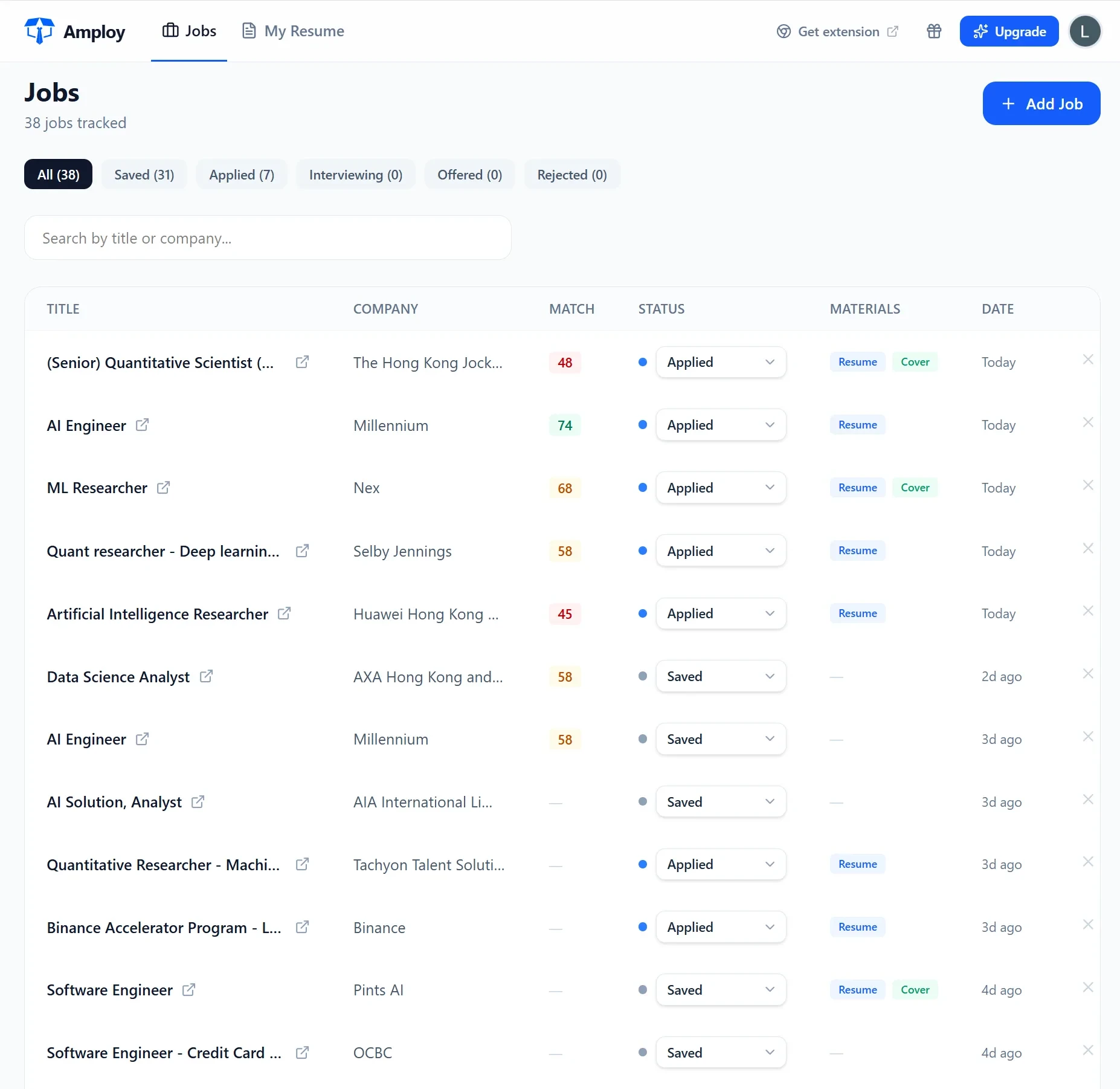
Notice how the pieces reinforce each other. Because the tracker shows what you've already applied to, you're less likely to wander back to a portal unsure whether you have an account. Because autofill handles the form, a password reset doesn't derail the whole session — you log in, and the rest is one click.
A simple routine to end the reset loop
You don't need a complicated system. You need a short routine you'll actually follow:
- Before you apply, check your tracker. If the company is already there, you know which portal and which login you used.
- Use the saved login, not a guess. If it's a brand-new portal, create the account with a generated password and save it immediately — before you start the form.
- Fill the application in one pass. Autofill the profile fields, then spend your attention on the parts that actually differentiate you: the tailored resume and the cover letter.
- Log the application. Status, materials, date. Future-you will thank present-you when the same company posts another role next month.
- If a reset is unavoidable, do it once and save the new password. The loop only repeats when the new password doesn't get stored.
The point isn't the password
Job hunting rewards volume, and the friction between "I want to apply" and "I've applied" is where most searches lose steam. Password resets are a tiny, fixable slice of that friction — but they're a reliable one, and they compound.
Get the logins out of your head, keep one per career site, and let the tooling carry the rest of the form. Then the next time a portal asks you to sign in, the answer is a click instead of a reset.
If you're ready to stop retyping and start applying faster, add Amploy to Chrome and set up your profile once — every application after that gets shorter.