
Job Application Tracker Excel: A Starter Setup and Its Limits
Applying to jobs at volume creates a paperwork problem fast. Ten applications in, you're juggling five tabs, three versions of your resume, and a vague memory of whether you already heard back from that one company. A spreadsheet is the classic fix — and it's a genuinely good starting point. Here's how to set one up, and where it starts to strain.
Why a tracker beats your inbox
Most job searches fail quietly, not loudly. You don't get a rejection letter for the application you forgot to follow up on. A tracker forces every role into a visible pipeline so nothing slips through the cracks.
The minimum viable setup is a single sheet with these columns:
- Company — the employer name
- Role — the job title as posted
- Date applied — so you can spot roles going stale
- Status — Saved, Applied, Interview, Offer, Rejected
- Link — the original posting, for reference
- Resume version — which file you sent
- Notes — recruiter name, referral, follow-up date
That's enough to start. Keep it flat, sort by status, and resist the urge to build seventeen pivot tables before you've applied to your first role.
Use status labels consistently
The value of a tracker collapses the moment your labels drift. Pick your stages once and stick to them:
- Saved — interested, not yet applied
- Applied — submitted and waiting
- Interview — any active conversation
- Offer — the good ending
- Rejected — closed out
Color-code the status column if it helps you scan. A weekly review of everything sitting in Applied for more than a couple of weeks tells you where to follow up.
Where the spreadsheet starts to hurt
A spreadsheet handles tracking well. It doesn't handle the parts of the job search that actually eat your time.
Tailoring still happens elsewhere. If you're customizing a resume for each role, that work lives outside the sheet. The column that says "Resume version" is just a filename — it doesn't help you produce the next one. Multiply that by every application and the busywork adds up.
Filling forms is still manual. Every career site wants your name, phone, work history, and often a short essay — retyped from scratch, application after application. The tracker records that you applied; it doesn't make applying faster.
Logins pile up. Different applicant tracking systems, different accounts, different passwords. A forgotten password at the wrong moment is a small friction that adds up across dozens of applications.
The sheet drifts. A tracker only works if you update it. When you're moving fast, the update is the first thing you skip — and then the pipeline you built stops reflecting reality.
Closing the gap between tracking and applying
This is the split Amploy is built around. The job tracker gives you the same status pipeline — Saved → Applied → Interview → Offer — sitting right next to each tailored resume and cover letter, so the record of what you sent stays attached to the role.
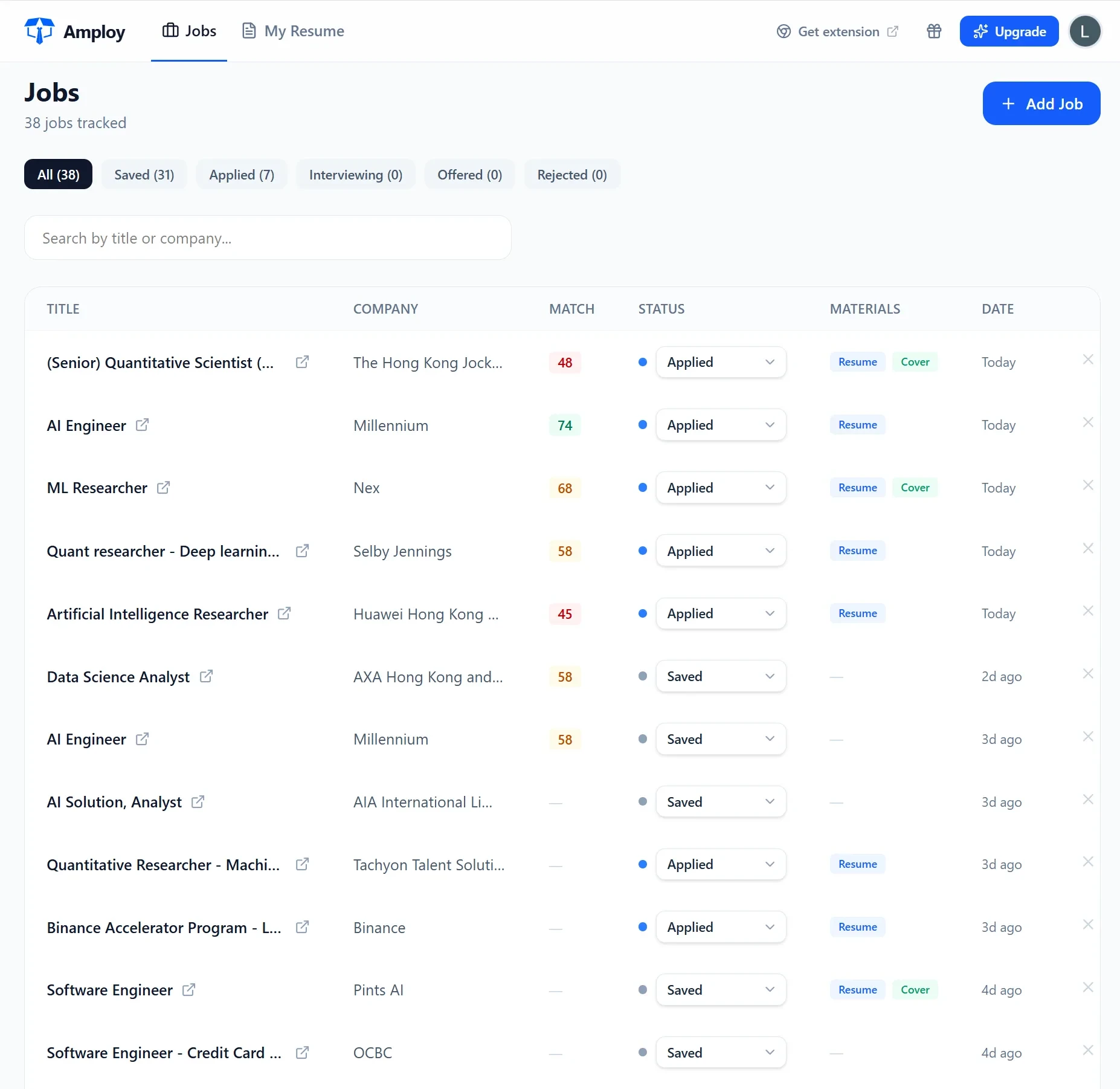
The difference is what happens before the row gets filled in. Amploy autofills application forms from your profile in one click — name, phone, work history, and essays. It generates a cover letter draft that references the specific role and your real experience, which you edit for your own voice. It rewrites your resume to match each job description. And a password saver keeps one saved login per career site, so you're never locked out mid-application.
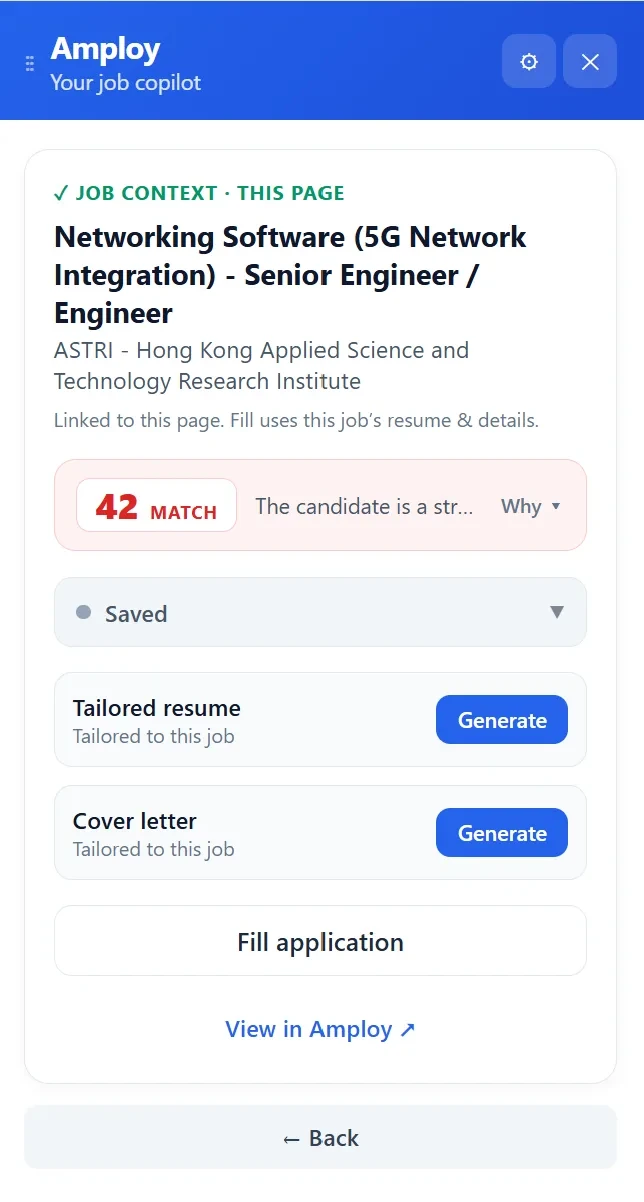
In other words: the spreadsheet is where you record the numbers game. Amploy is what lets you actually play it without burning out.
A practical starting point
If you already have an Excel tracker, keep it — but be honest about which columns do real work and which are decoration. If the "Resume version" column is mostly blank because tailoring takes too long, that's the signal.
Start with the five status stages, add the company, role, date, and link, and run a weekly review. Then let the repetitive parts — form-filling, drafting, rewriting, logging in — move out of the spreadsheet and into a tool built for them.
Ready to stop losing time on the busywork? Install the Amploy extension and let your tracker do what it's good at: showing you the progress you've already made.