
How to Build a Job Application Tracker in Excel Without Missing Follow-Ups
You don't lose job opportunities because you're bad at your job. You lose them because the follow-up you meant to send on Tuesday never went out, and the role you applied to two weeks ago has quietly dropped off your radar.
A spreadsheet won't fix motivation. But a well-built tracker fixes the memory problem — it tells you exactly which company owes you a reply, which application has gone stale, and what needs to happen next. Here's how to build one in Excel that actually holds up.
Start with the columns that carry the weight
Most job-hunt spreadsheets fail because they try to record everything. You end up with twenty columns you never fill in. Start lean and add only what you'll genuinely update.
A workable first set:
- Company — the employer name
- Role — the job title
- Link — the original job posting
- Date applied
- Status — see the dropdown section below
- Follow-up date
- Contact — recruiter or hiring manager name
- Notes — anything you'll forget otherwise
You can add resume version, salary range, or interview stage later. Resist that for now. A tracker you fill in consistently beats a tracker that's technically comprehensive and permanently empty.
Make status a dropdown, not free text
The fastest way to break a tracker is inconsistent status naming. "Applied," "applied," "Sent," and "Submitted" should be one status, not four. Excel's data validation handles this.
Select your Status column, open Data → Data Validation, choose List, and enter your stages separated by commas: Saved, Applied, Interview, Offer, Rejected. Now every row is filled by clicking, not typing, and you can filter or count reliably.
Build the follow-up date so it works for you
The follow-up column is the part people skip, and it's the whole point. The simple version: set a follow-up date five to seven business days after you apply.
You can automate that. In your Follow-up date cell, use a formula that adds working days to your Date applied column:
=WORKDAY(E2, 5)
That gives you five business days from the application date, skipping weekends automatically. Fill the formula down the column and every new application schedules its own follow-up.
Then use conditional formatting to make overdue follow-ups impossible to ignore: select the Follow-up date column, add a rule that highlights cells where the date is before today. A red cell staring back at you is more persuasive than a note in your head.
Track versions, not just applications
When a recruiter calls, you need to know which resume you sent them. Add a Resume version column and a short label like "Resume — Product Track" or "Cover letter — v2." It takes seconds and saves you an awkward moment on the phone.
This is where spreadsheets start to show their limits. The tracker can tell you which version you sent, but it can't produce a tailored version for the next application. That's the repetitive work Amploy was built for: its resume rewrite and cover letter generation tools take your real experience and shape a draft around each specific job description, so you're not rebuilding the same document from scratch every time.

The Excel range ends where your applications begin
Every part of this tracker, done well, still requires you to manually copy the company name, paste the link, set a date, and type notes — for every single application. At five applications a week it's manageable. At twenty, the spreadsheet becomes another chore standing between you and the next application.
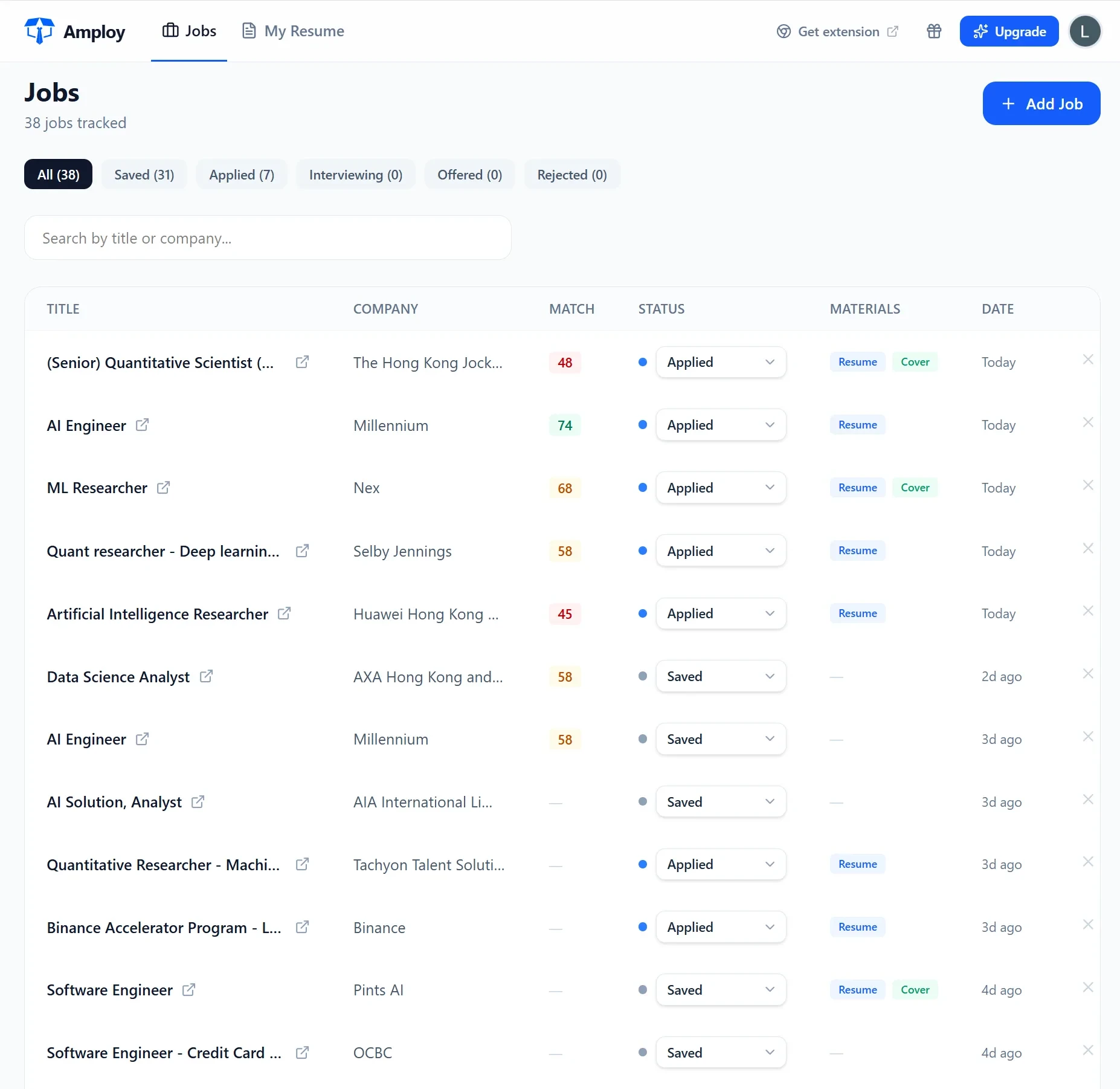
Amploy's job tracker keeps the same Saved → Applied → Interview → Offer pipeline sitting right next to the tailored resume and cover letter for each role. You skip the setup and the manual entry, because every application you fill with the extension flows into the tracker automatically.
Don't forget the logins
One overlooked failure point in a high-volume search: the career sites. Big employers run applications through their own portals, each requiring an account, and you end up with a dozen logins you can't remember. You find a great role and spend twenty minutes resetting a password.
If you're building the Excel version, keep a separate secure record of site credentials — never in the tracker itself. Amploy stores one saved login per career site, which removes the reset-password detour from the start of every application.
A weekly routine that keeps the tracker honest
The spreadsheet only helps if you look at it. Set aside twenty minutes once a week:
- Sort by Follow-up date and send every overdue follow-up.
- Update statuses on anything that moved.
- Flag applications older than three weeks with no reply — move them to a "cold" view and stop waiting.
- Add next week's follow-ups as you apply.
That's it. No elaborate dashboard needed.
Build it — then stop maintaining it
A well-structured Excel tracker genuinely works, and if you're applying to five or six roles a month, building one is a fine investment. The structure above — lean columns, validated statuses, automatic follow-up dates, conditional formatting — is enough to stop opportunities slipping through.
But the tracker isn't the job. Applying is. And the more roles you apply to, the more the manual data entry works against you.
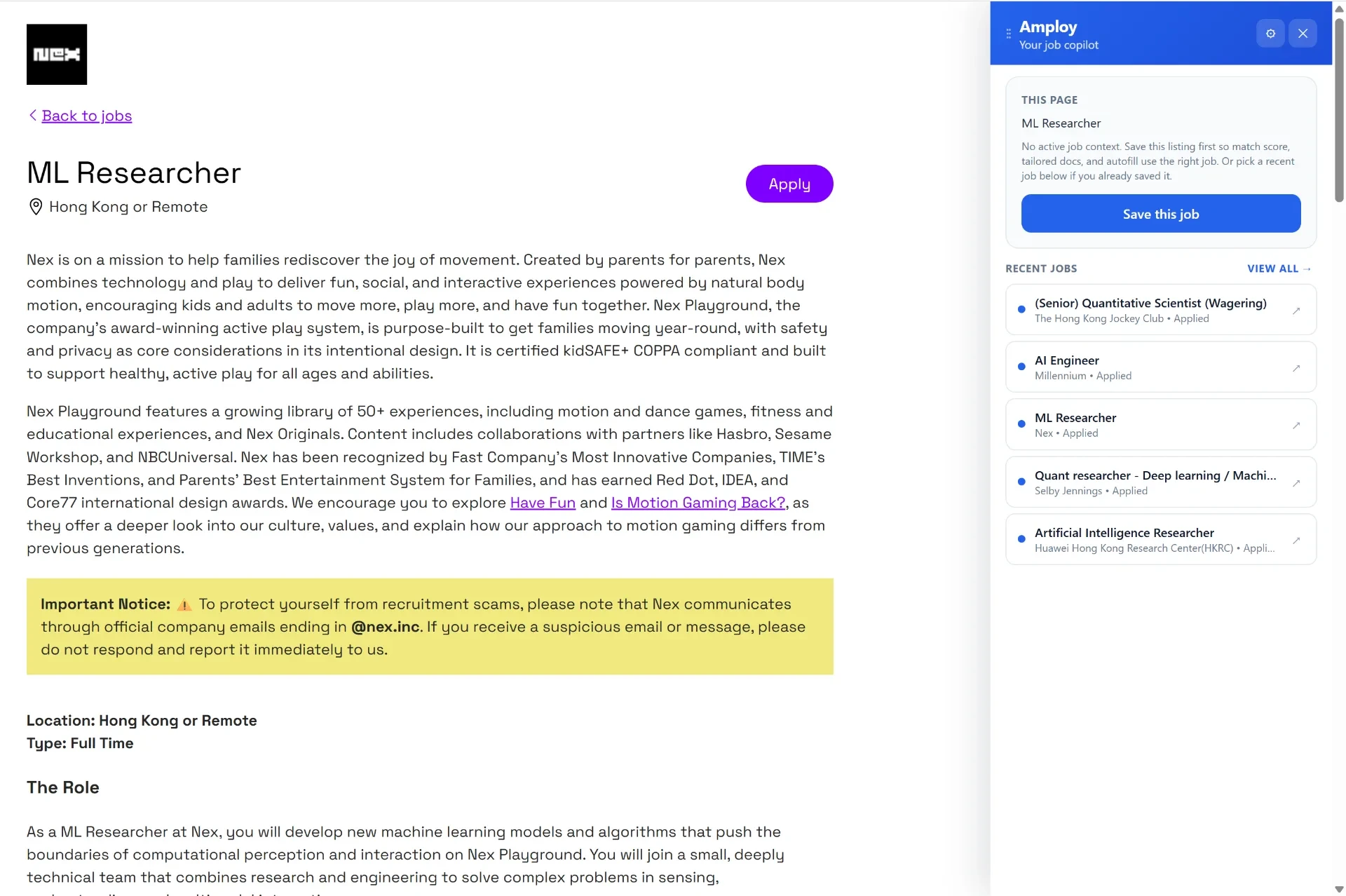
That's the trade Amploy makes: you keep the follow-up discipline and the pipeline visibility, and you hand off the repetitive parts — autofilling applications from your profile, drafting tailored resumes and cover letters, and logging each application in a tracker as you go. You apply to more roles without losing your place, and without spending your evenings updating a spreadsheet.
Start with the tracker if you like the control. When the upkeep starts crowding out the applications, move the pipeline into Amploy and keep the follow-ups — just not the busywork.