
How to Autofill Job Applications Without Losing Accuracy
Applying to jobs is a volume game, but filling out the same forms over and over is where that volume goes to die. Autofill fixes the speed problem — as long as it doesn't introduce a new one: careless mistakes that get you filtered out before a human ever reads your application.
Here's how to use autofill on job applications while keeping every field accurate.
Why autofill earns its place
Most open roles draw hundreds of applicants. Rejections usually aren't personal — the people who land interviews simply apply to more roles, faster. Every minute spent retyping your work history into a different portal is a minute you're not spending on the next application.
Autofill removes that repetition: one click fills your name, phone, work history, and essay answers from a saved profile. The goal isn't to apply blindly — it's to spend your effort on the parts that actually differentiate you.
Set up your profile once, properly
Accuracy starts before you ever hit autofill. Your saved profile is the source of truth for every application, so treat it like your master resume:
- Contact details — use an email and phone number you check daily.
- Work history — enter roles, dates, and titles exactly as they appear on your resume. Mismatches between autofilled fields and your attached resume are an easy red flag.
- Standard answers — fill in the recurring essay prompts (why this role, salary expectations, availability) so you start from a real draft instead of a blank box.

Always review before you submit
Autofill is fast, not infallible. Portals use different field layouts, and a value can land in the wrong box or get skipped entirely. Make a 30-second review a habit:
- Scan every autofilled field, top to bottom.
- Confirm dates and job titles match your resume.
- Check dropdowns and yes/no questions — these are the most common misfires.
- Read any generated essay answer once before submitting.
Tailor — don't just paste
Autofill handles the identical fields. The parts that win interviews — your resume and cover letter — should still speak to the specific role.
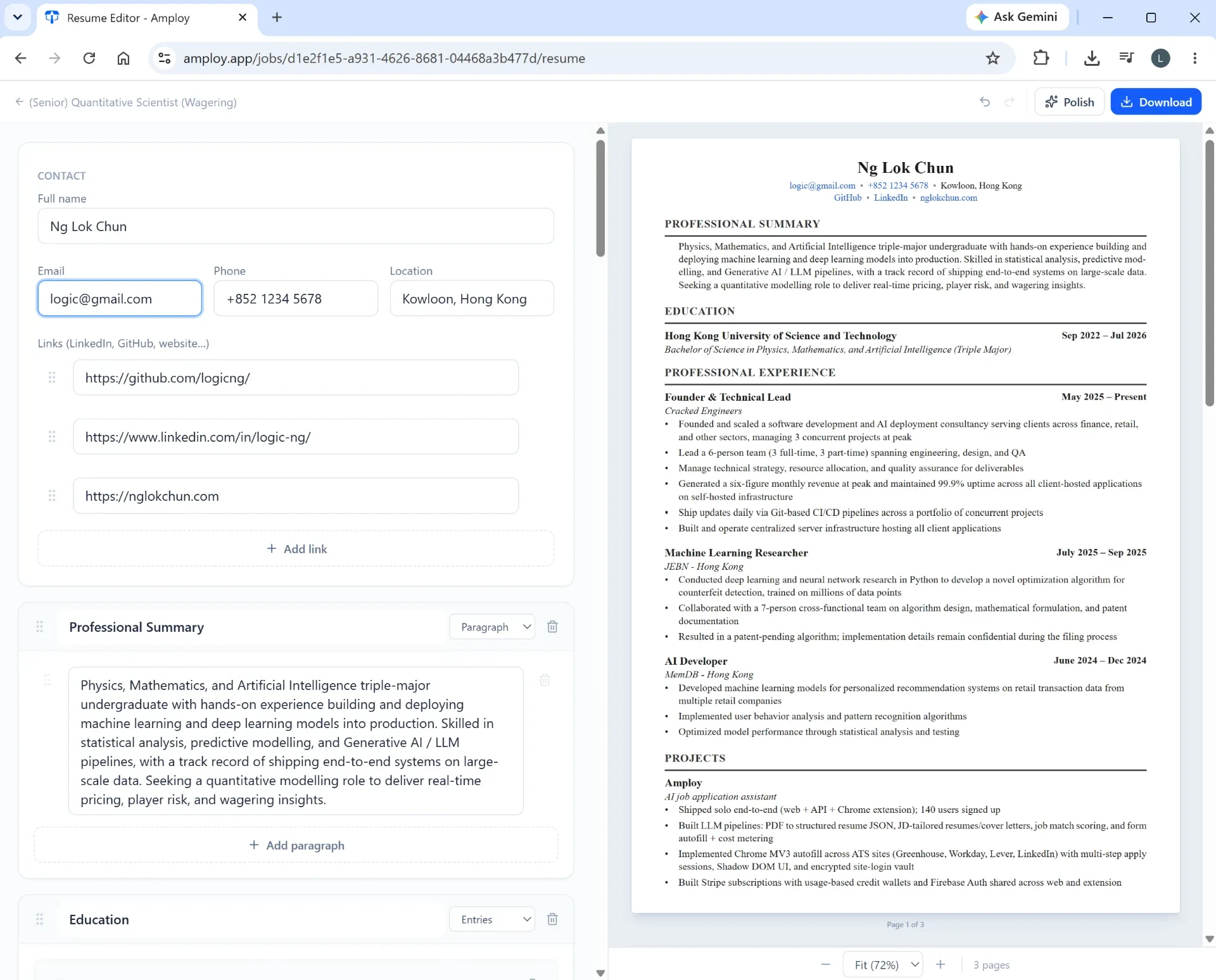
Rather than rewriting from scratch each time, start from a first draft built from your real experience and the job description, then edit for your voice and the details that matter to this employer. You get the speed of automation with a document that reads like it was written for this job.
Keep track of what you've sent
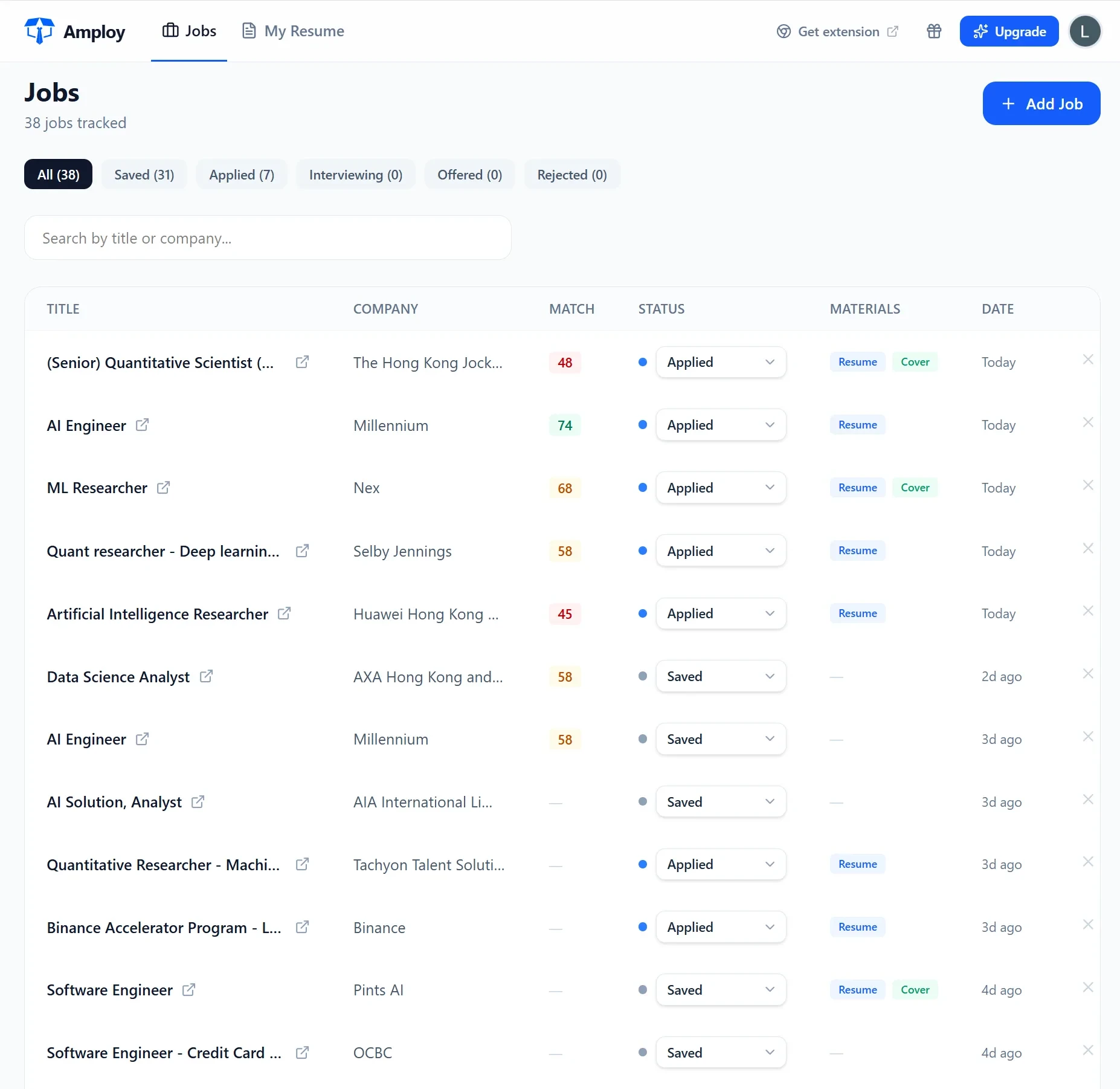
When you're applying faster, it's easy to lose the thread of where you applied and what you sent. Keep each tailored resume and cover letter attached to its application in a status pipeline — Saved → Applied → Interview → Offer — so you always know what's outstanding and what to follow up on.
Don't let logins slow you down
Career sites mean accounts, and accounts mean passwords you'll never remember. Saving one login per career site — instead of resetting it every time — keeps the whole process moving.

How Amploy fits in
Amploy is built for exactly this workflow. The Chrome extension autofills applications in one click from your profile, generates a cover letter draft that references the role and your real experience, and rewrites your resume to match each job description. Everything you send lives next to a job tracker, and a password saver handles the logins.
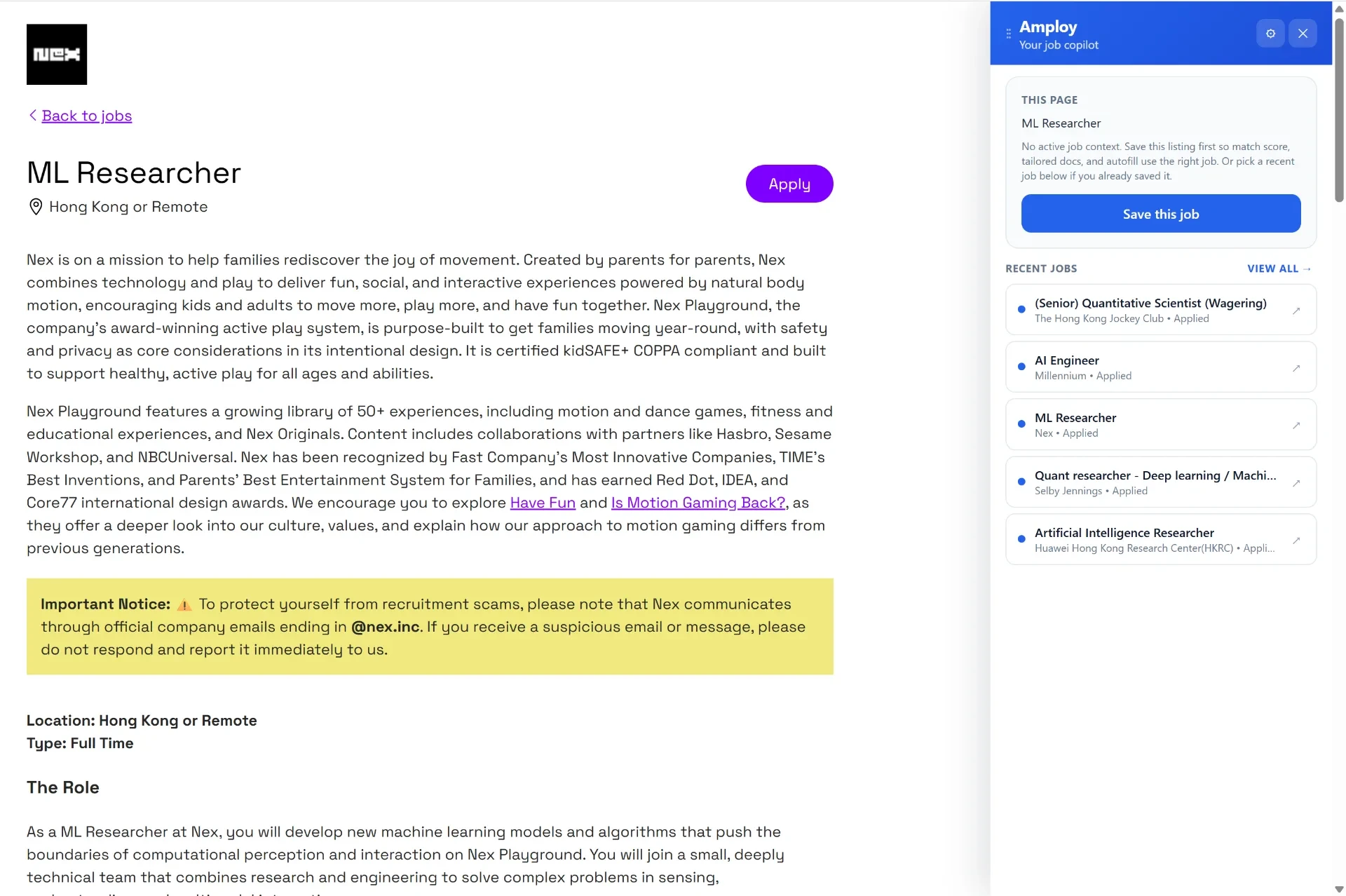
The promise is simple: stop wasting so much time applying to jobs. Autofill the repetitive parts, review for accuracy, tailor what matters, and apply to more roles without burning out.
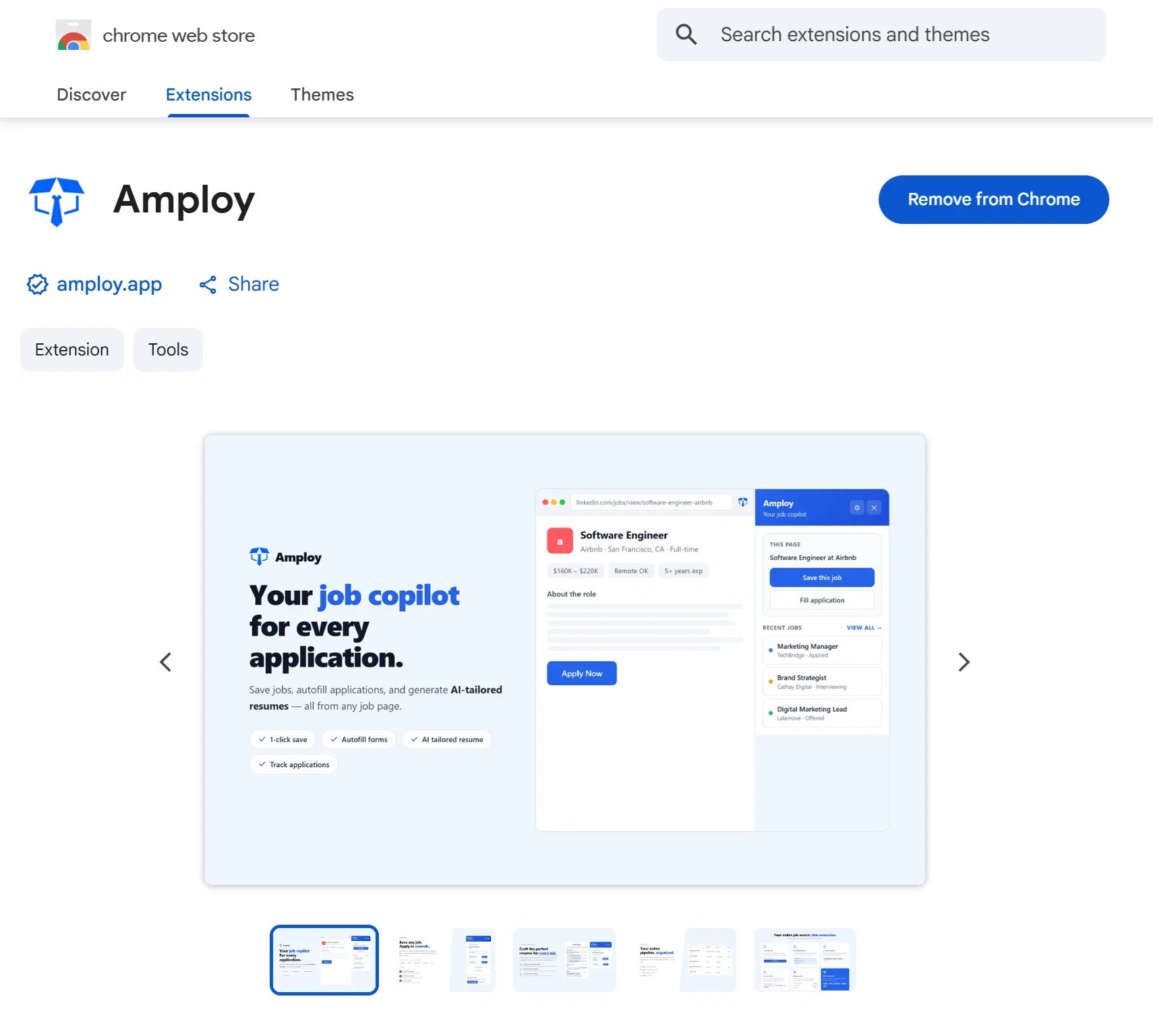
Ready to speed up your search? Add Amploy to Chrome, set up your profile once, and let the next application fill itself in — then give it that 30-second check before you hit submit.