
How Autofill Works in a Chrome Extension for Job Applications
If you've applied to more than a handful of jobs recently, you've felt it: the same name, phone number, work history, and education fields, retyped into a slightly different form on a slightly different careers page. Autofill promises to make that go away. But how does it actually work inside a Chrome extension, and where does the typing stop and the judgment begin?
Here's the honest version.
What "autofill" means for a job application
Autofill in a job-search context isn't just your name and email. Job applications ask for:
- Contact details: name, phone, location, email, links
- Work history, sometimes split across multiple employer blocks
- Education and dates
- Screening questions ("Do you have the right to work here?")
- Long-form fields like "Why do you want this role?"
A basic browser autofill handles the first bullet. A job-application autofill extension needs to handle all five, because the fifth is where most of the time actually goes.
The mechanics: how an extension fills a form
A Chrome extension runs inside your browser, alongside the page you're on. It can read the page's structure and write into form fields — but only when you tell it to. That's the key architectural fact: autofill is user-initiated, not a background process scraping every site you visit.
When you click to fill an application, the extension roughly does three things:
- Detects the fields. It looks at input labels, names, and types to figure out what each field is asking for.
- Maps your profile to those fields. Your stored work history, contact info, and saved answers get matched to the right boxes.
- Writes the values in. The fields populate as if you'd typed them — and you review before submitting.
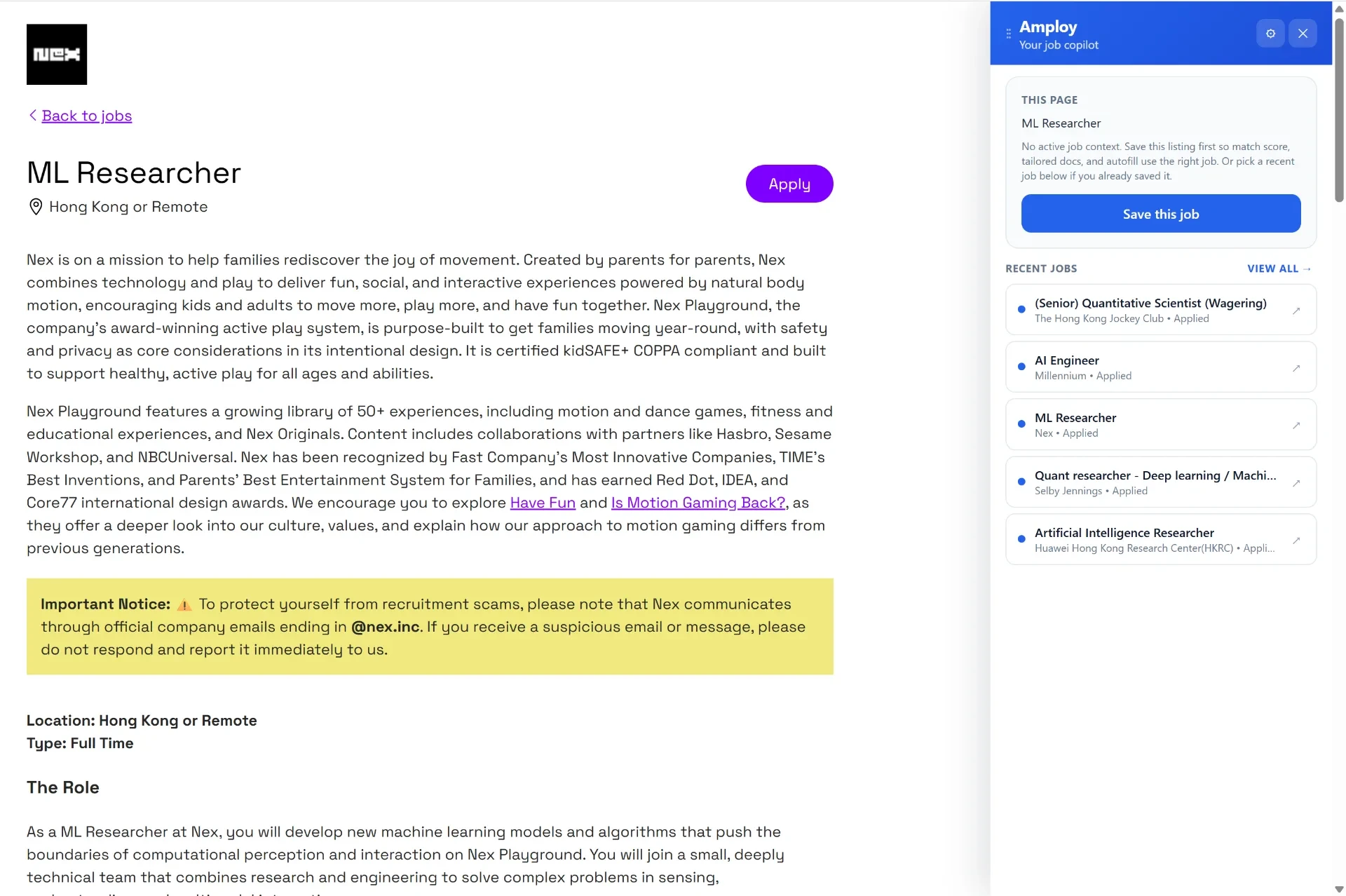
The detection step is where extensions differ most. A form labeled cleanly is easy. A form with fields named field_17 and field_18 is not. The better tools handle both, which is why a dedicated job-search extension usually beats the browser's built-in autofill — it's been trained on the messiness of real careers pages.
Where autofill ends and tailoring begins
A form filled with the same generic resume for every role isn't much of a head start. The applications that get replies are the ones where the materials actually match the job description.
That's why Amploy treats autofill as one part of a pipeline, not the whole product. When you're on a job posting, the extension reads the role and works alongside it:
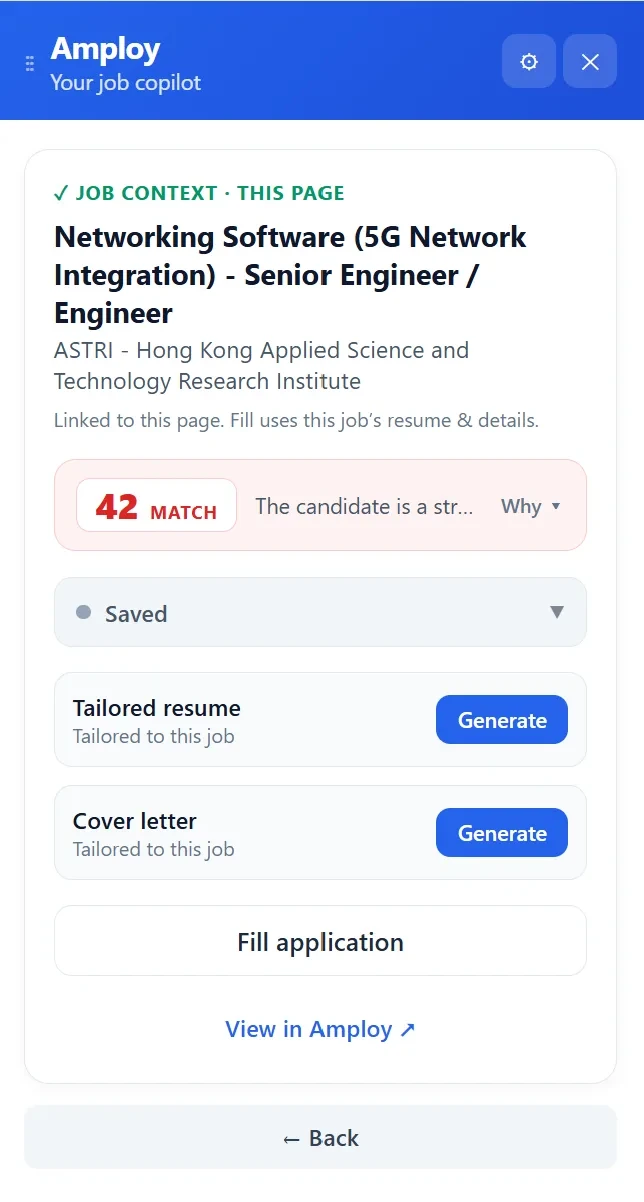
From there you can generate a tailored resume that rewrites your real experience to match the job description, and a cover letter draft that references the role and your actual background — both editable, both in your voice, not a template.
That matters for the volume argument. The jobs that get hundreds of applicants aren't won by the person who typed fastest; they're won by the person who applied to more roles with materials that fit each one. Autofill removes the retyping. Tailoring removes the "why should we read this one?" problem. Amploy does both in the same place.
The part nobody talks about: what happens after you hit submit
Autofill gets you to the submit button faster, which is great — until you've applied to twenty roles and can't remember which ones, or which resume version went where, or when you should follow up.
Three small things make that manageable:
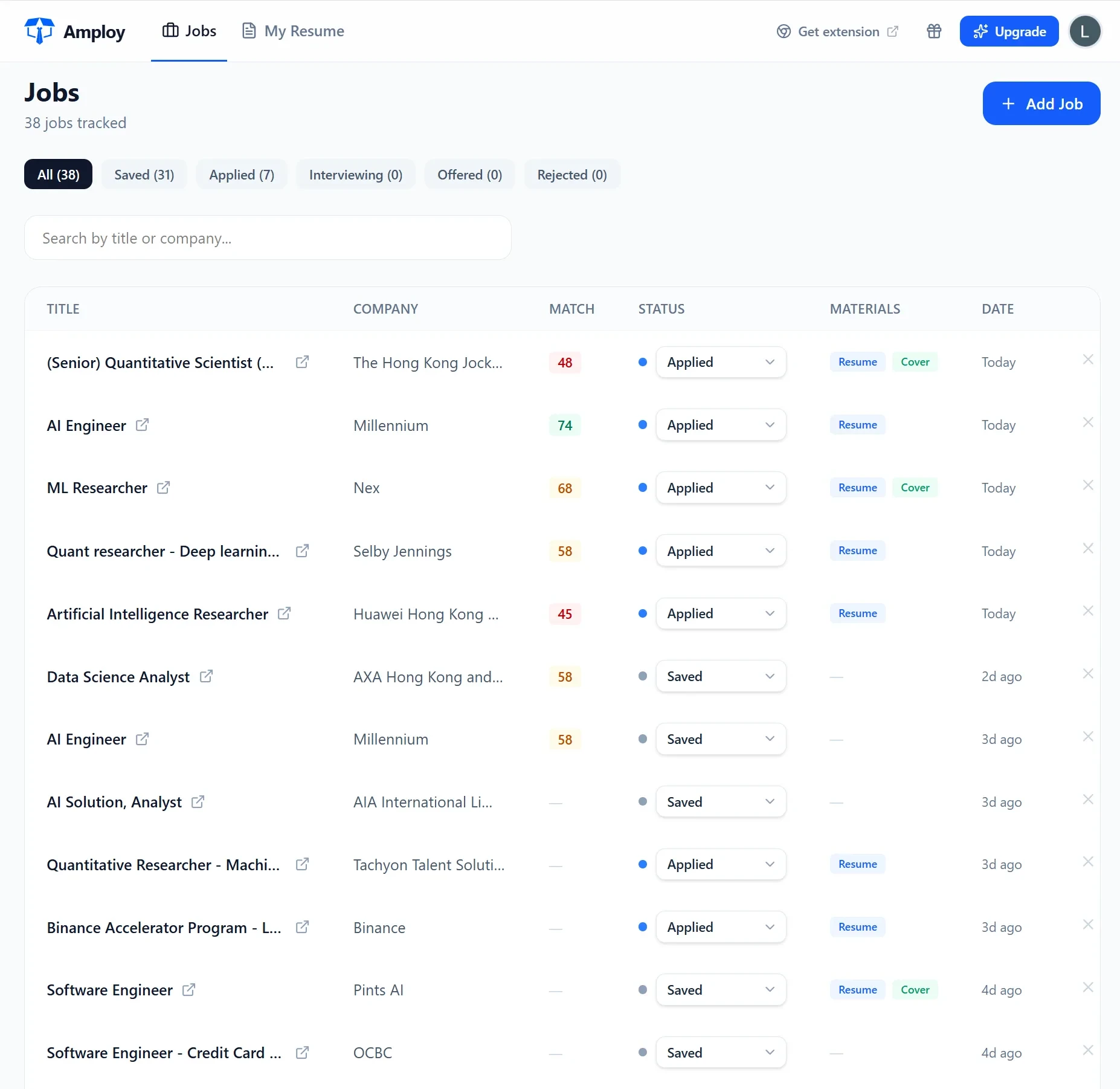
A job tracker. Every role you apply to moves through a pipeline — Saved → Applied → Interview → Offer — sitting next to the resume and cover letter you used for it. That way you're not reconstructing your own history from memory.
Saved logins. Careers sites love their own logins. One saved login per career site, not per job, means you're not resetting a password mid-application.

A single profile. Everything autofill fills comes from one place you maintain — your real experience, your real details. Update it once, and every application after that starts from the current version.
How to set it up (and what to expect)
The setup is intentionally short:
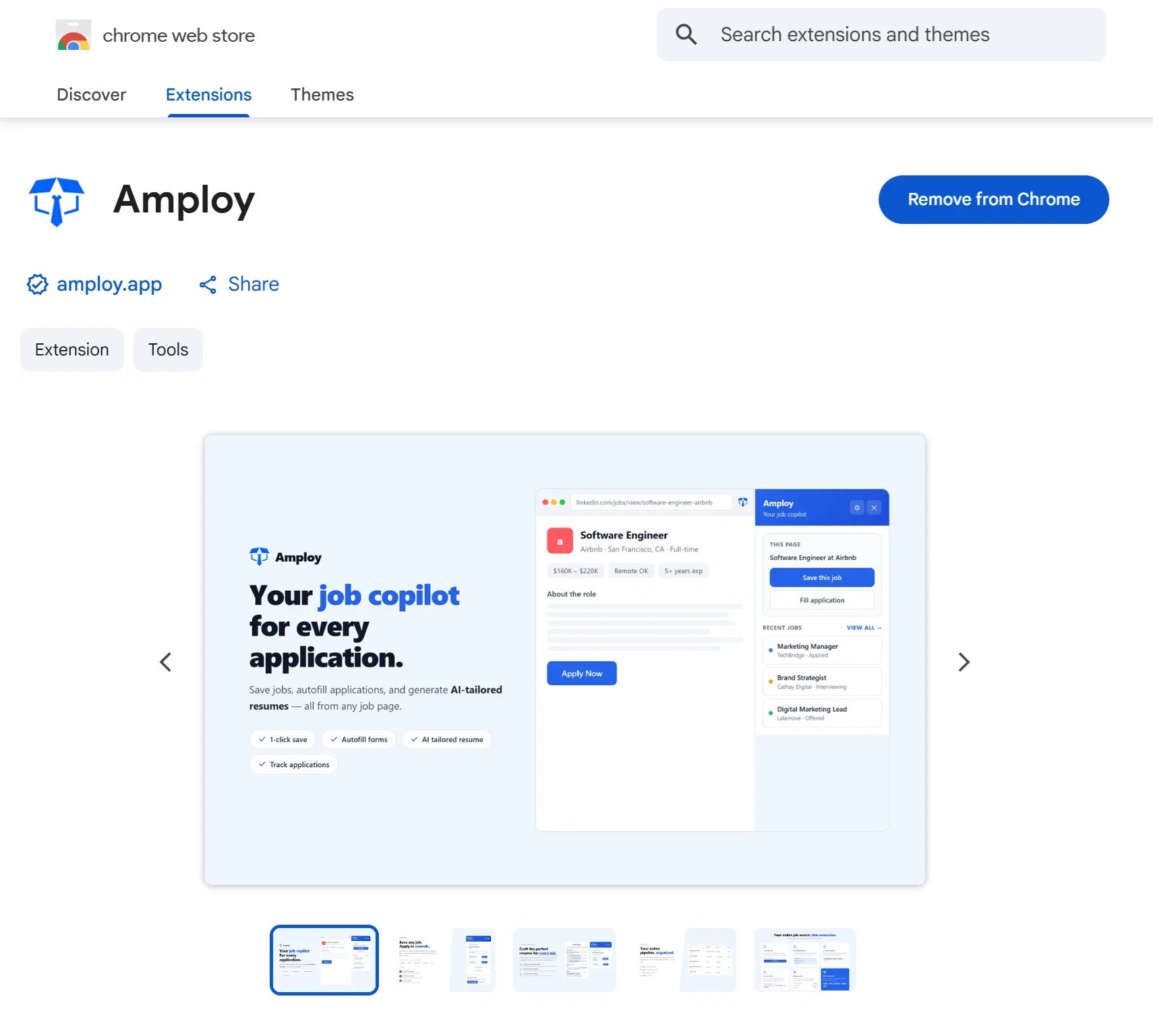
- Install the extension from the Chrome Web Store.
- Fill in your profile — contact details, work history, education, links.
- Apply to a role. On a job posting, use the extension to generate tailored materials and fill the application in one pass.
Two expectations worth setting:
- Autofill fills; you still review. Always check before you submit — a mismatched field or a screening question the extension couldn't infer is worth ten seconds of your attention.
- Tailoring is a draft, not a decision. The resume rewrite and cover letter are starting points built from your real experience. Edit them so they sound like you.
The bottom line
Autofill in a job-application extension is genuinely simple under the hood: detect the fields, map your profile, write the values. The value isn't the technology — it's what the saved time lets you do.
Hiring is a numbers game, and the people who land interviews usually aren't better than you; they just apply more, faster, with materials that fit. Amploy exists to make that sustainable: autofill for the retyping, tailoring for the fit, and a tracker so the whole search stays in one place instead of scattered across your browser history.
Stop wasting so much time applying to jobs. [Get Amploy →]