
Autofill in Chrome: A Job Seeker's Walkthrough
Job hunting online has a rhythm to it. You open a listing, read the description, decide it's worth applying, and then you hit the form. Name. Email. Phone. Address. Resume upload. Work history. Education. The same fields, again and again, on every single application.
Most applicants fill those fields out by hand, one at a time, dozens — sometimes hundreds — of times. Autofill in Chrome changes that equation. Below is a practical walkthrough of how job application autofill works, where it breaks down, and how to set it up so it actually speeds up your search instead of just saving you keystrokes.
What job application autofill actually does
Browser autofill is a convenience feature: Chrome stores details you use often — names, addresses, emails, phone numbers — and offers to enter them into form fields when it recognizes a pattern. For simple contact forms, it works well.
Job applications are a harder case. A single application is usually not one form but a stack of them:
- Contact details on the listing page
- A login wall for the applicant tracking system (ATS)
- Work history, field by field, sometimes one job per screen
- Education, skills, and references
- An optional cover letter box
- A resume upload
- Sometimes custom screening questions
Standard autofill handles the first item and then hands you back the clicker. The repetitive part — of a job hunt — is everything after it.
Where Chrome's default autofill stops
It helps to know exactly what the browser can and can't do on a job application, so you spend time only where it counts.
It doesn't carry work history. Chrome can remember an address. It can't populate ten separate employment fields with titles, companies, dates, and descriptions in the right slots.
It doesn't understand application forms. Many ATS platforms label fields inconsistently. Autofill is guessing as often as it's helping, and a wrong guess in a work history entry takes longer to fix than typing it.
It doesn't write anything. The cover letter box and any open-ended questions are all on you.
It doesn't remember your logins the way you need. You may have accounts across a dozen or more career sites and ATS platforms. Forgetting a password mid-application is a small friction that adds up over a long search.
Setting up a job application autofill extension in Chrome
A dedicated job application autofill extension goes a layer deeper than the browser's built-in feature. Instead of remembering individual values, it stores a full candidate profile — contact information, work history, education, links — and fills whole forms from it in one click.
For Amploy, setup looks like this:
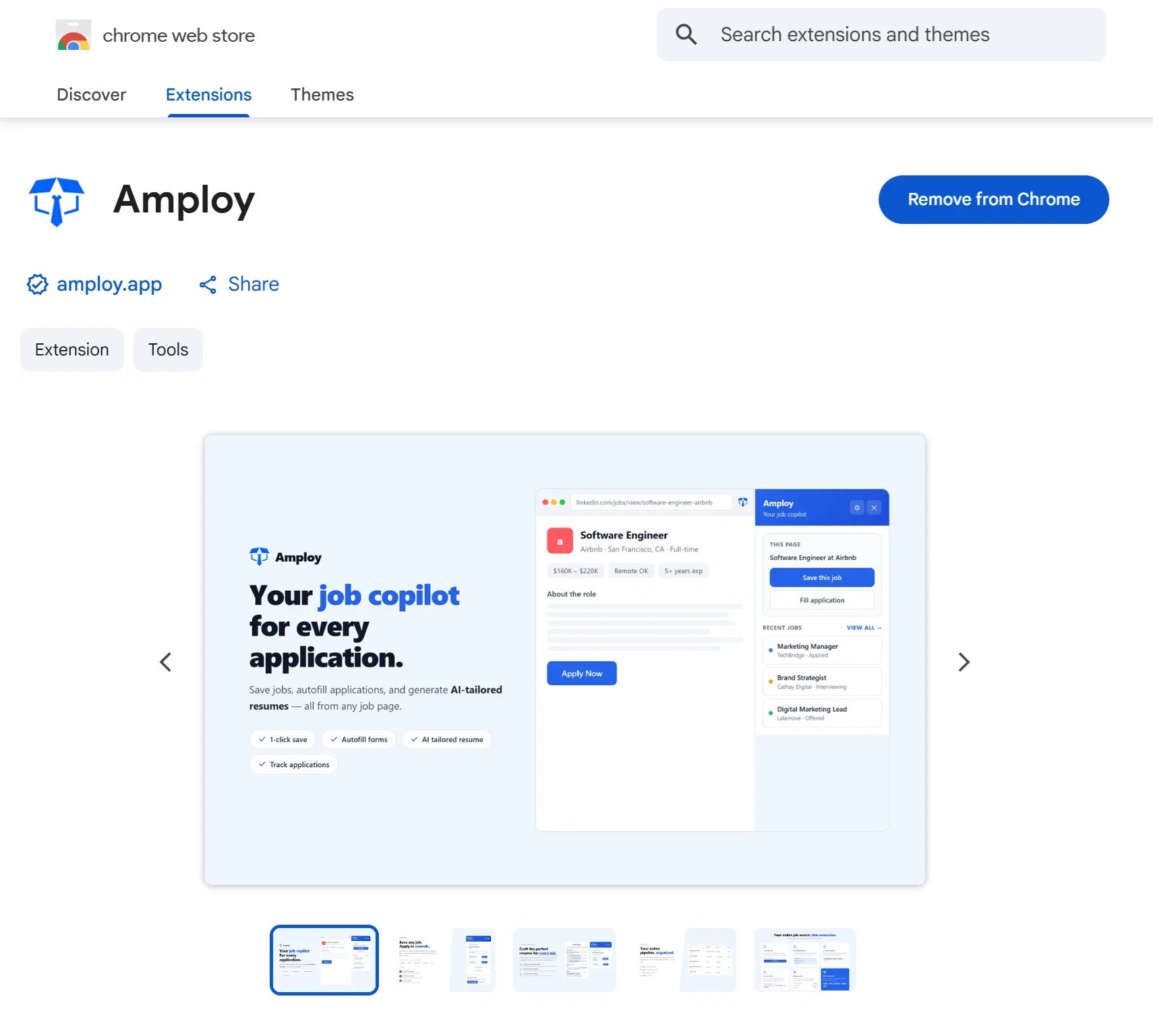
- Install the extension from the Chrome Web Store and pin it to your toolbar so it's one click away when you're on a listing.
- Build your profile once. Add your contact details, work history, education, and links. This is the last time you'll type them by hand.
- Open a listing you want to apply for and pull up the extension. It reads the job context on the page — the role, company, and details — so your materials can be matched to that specific posting.
- Generate your materials. From the same panel, produce a tailored resume and a draft cover letter for the role.
- Fill the application form with one click, then review before you submit.
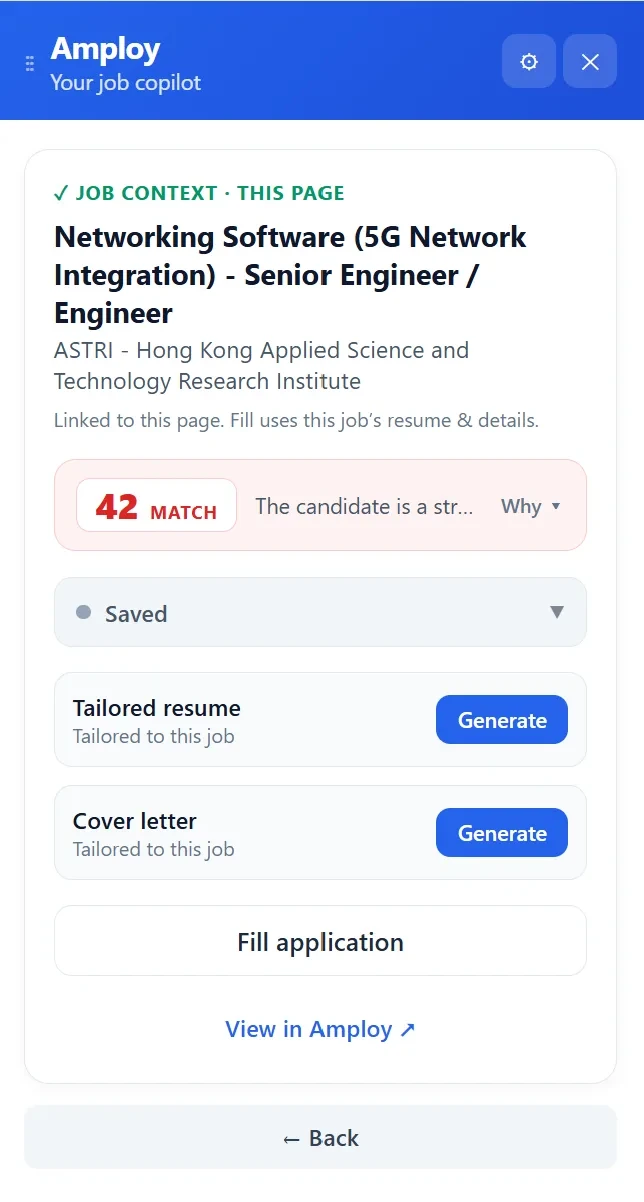
That sequence is the whole loop. The profile is the investment; every application after it is faster.
Autofill is only half the job
Filling the form quickly solves the mechanical problem. It doesn't solve the two things hiring managers actually read: your resume and your cover letter.
Applying to more roles with the same generic resume doesn't help if the resume doesn't match the posting. The reason volume works in a job search isn't that anyone is impressed by the number of applications — it's that each tailored application gets a real chance, and more attempts mean more shots at an interview.
That's the part Amploy pairs with autofill:
- Resume rewrite adjusts your real experience to the language of each job description, so the same profile reads differently — and more relevantly — for every role.
- Cover letter drafting produces a first draft that references the specific role and your actual background, which you then edit in your own voice.
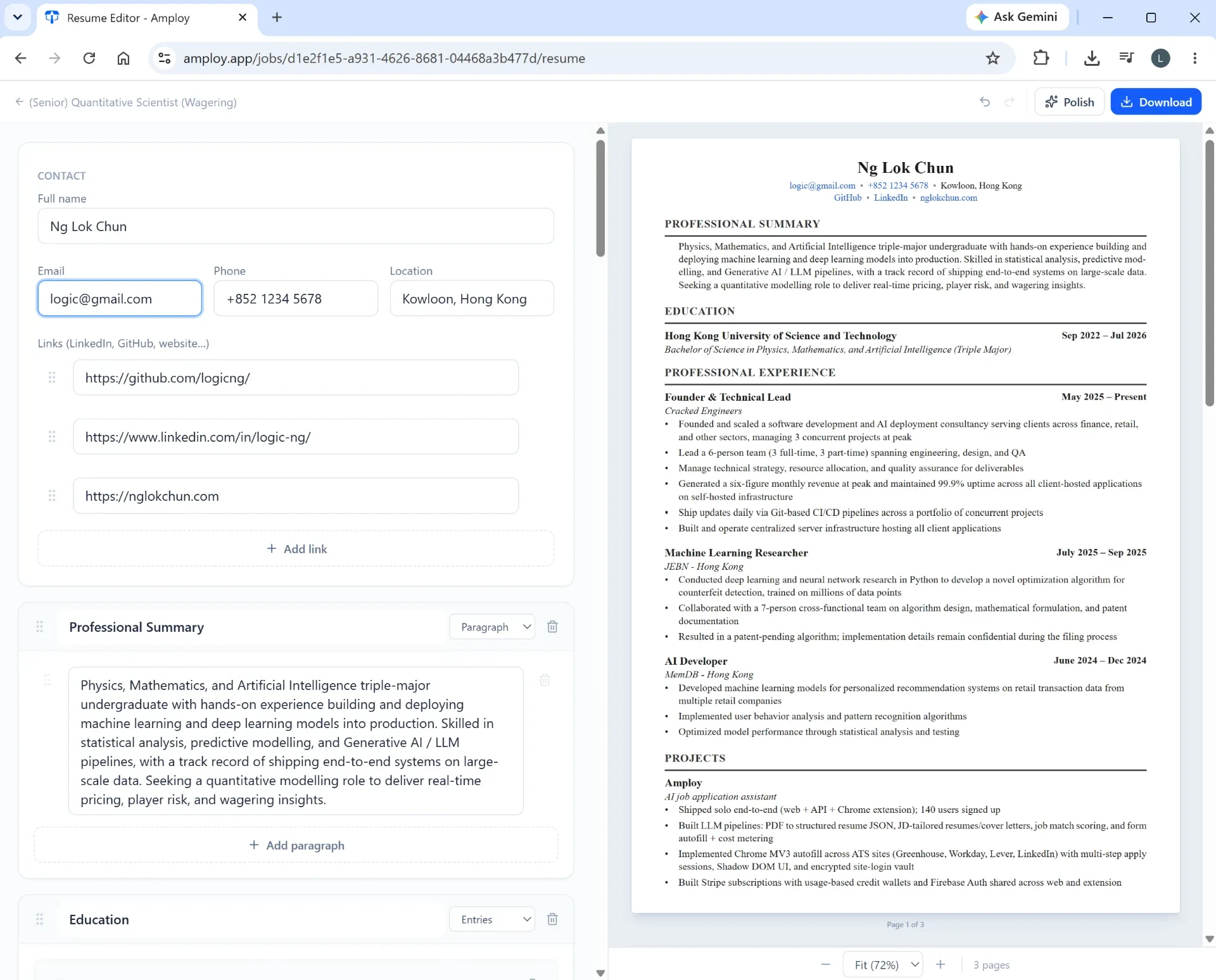
Autofill saves you minutes per application. Tailoring is what makes those minutes count.
Keep track of what you've sent
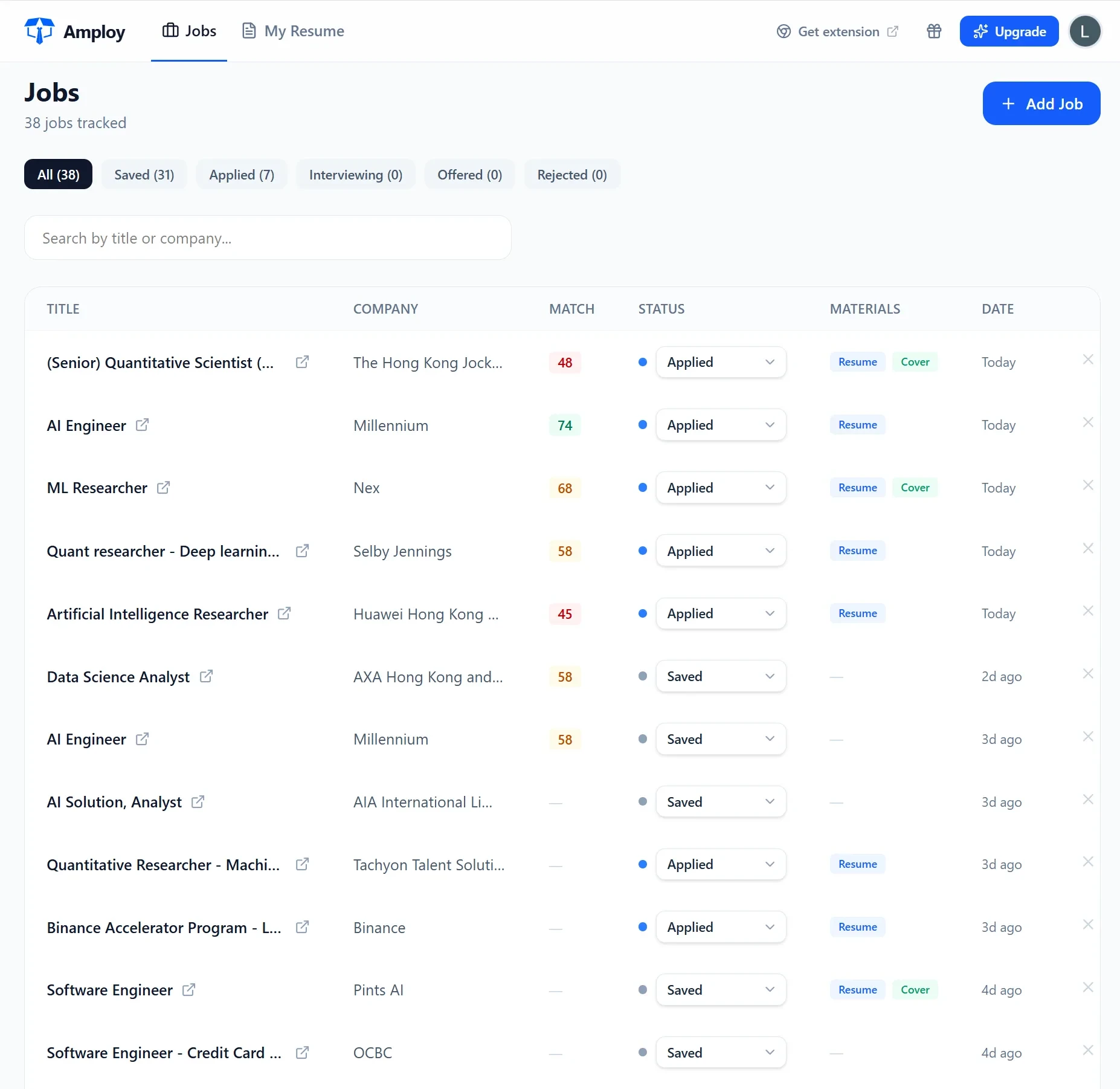
Once applying gets fast, it gets harder to remember. Which companies have you applied to? Who replied? Which resume version went where?
A tracker that sits alongside your tailored materials turns a scattered inbox into a pipeline: Saved → Applied → Interview → Offer, with the resume and cover letter you sent stored next to each role. When a recruiter calls, you know exactly which version of your background they're looking at.
Don't let logins slow you down
Career sites and ATS platforms each want an account and a password. One login per career site — not per job — is usually all you need, but that's still a lot of passwords to hold onto.
A password saver built into the same extension keeps those logins handy, so you're not clicking "forgot password" in the middle of an application.

A realistic walkthrough
Here's what the whole process looks like once everything is set up:
- Browse listings as usual and open one that fits.
- Click the extension to see the role context and a match score.
- Generate a tailored resume and cover letter draft; make quick edits.
- Use one-click autofill on the application form.
- Submit, and let the tracker record it as Applied.
- Move on to the next listing — and repeat without retyping a single field.
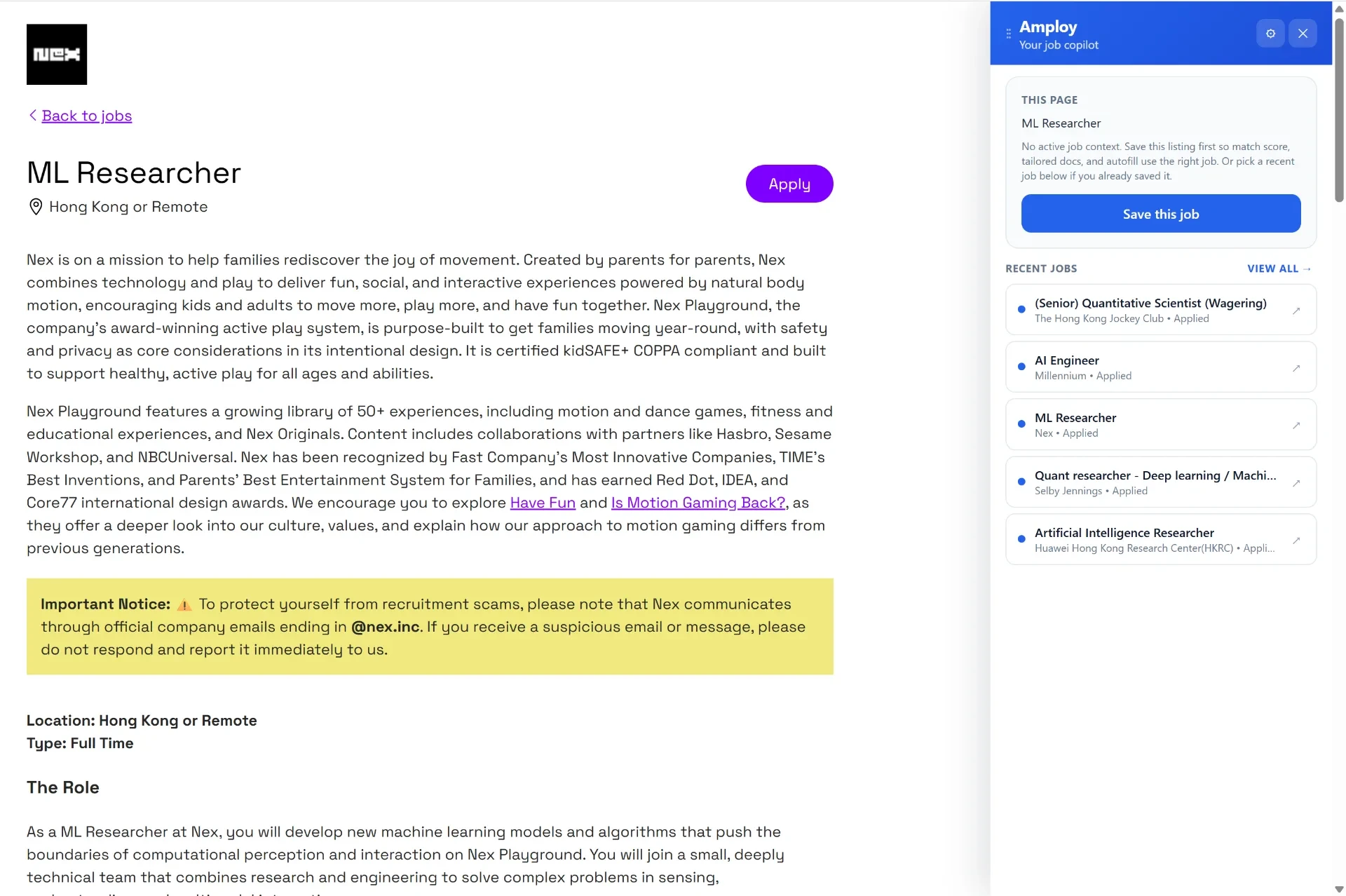
The difference isn't dramatic on any single application. It's cumulative. Ten applications in the time it used to take three is how a search starts producing interviews.
Getting started
Chrome's built-in autofill is a good default for contact forms. For job applications, you want a tool that understands the whole form — and the materials behind it.
Amploy is built for exactly that: autofill, resume rewriting, cover letter drafting, a tracker, and a password saver, all in one extension. Set up your profile once, then let the repetitive part run on autopilot.
If the forms are what's slowing your search down, start by installing the extension and filling in your profile. Your next application will take a fraction of the time — and the one after that, less still.